
If you are planning to learn Adobe After Effects professionally, understanding the core foundation is extremely important before jumping into advanced effects and animations. Many beginners directly start using presets and plugins without learning the proper workflow, which later creates confusion and slows down productivity. In this complete guide, we will clearly explain Workspaces and their uses, Folder Structure organization, Import options, Composition settings and ratios, and a detailed breakdown of Timeline, Video Tracks, Audio Tracks, and how everything works inside After Effects. This structured knowledge will help you edit faster, stay organized, and work like a professional motion designer.
1️⃣ Workspaces & Their Uses in After Effects
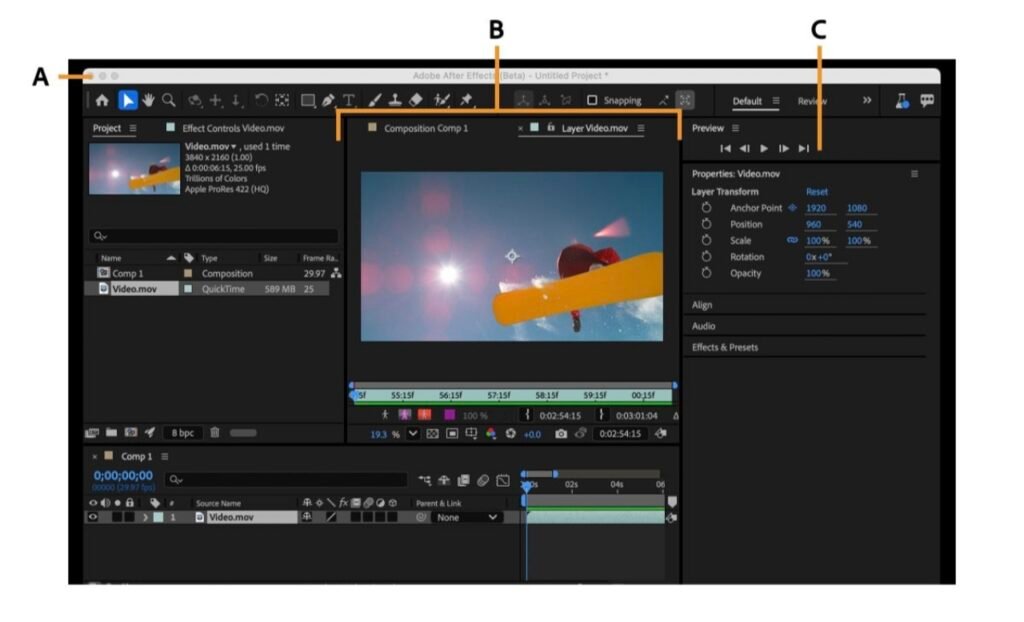
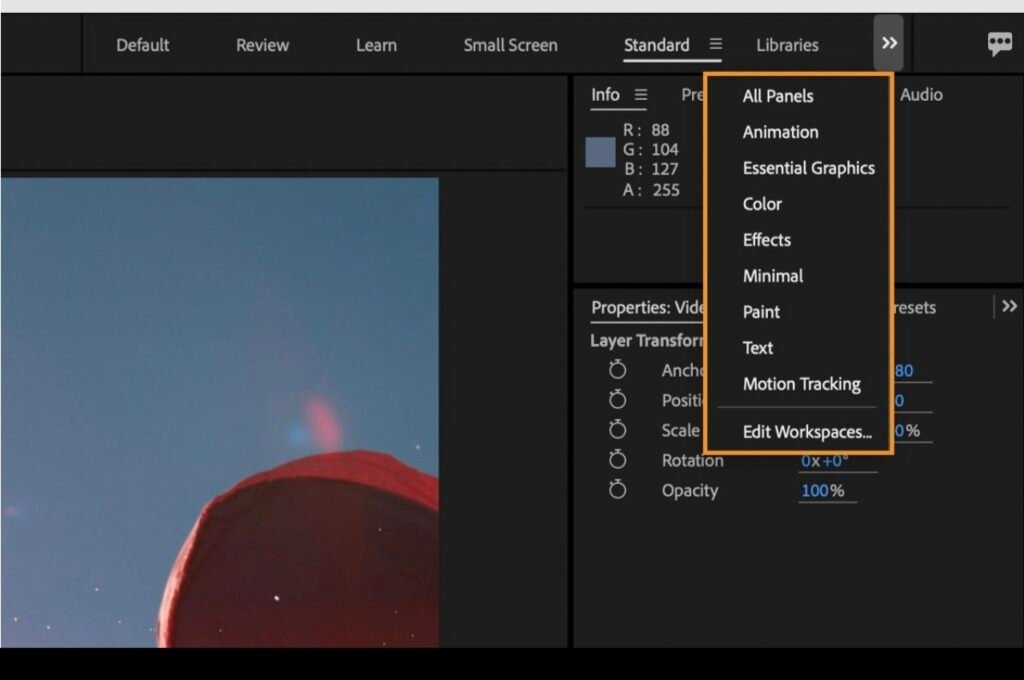
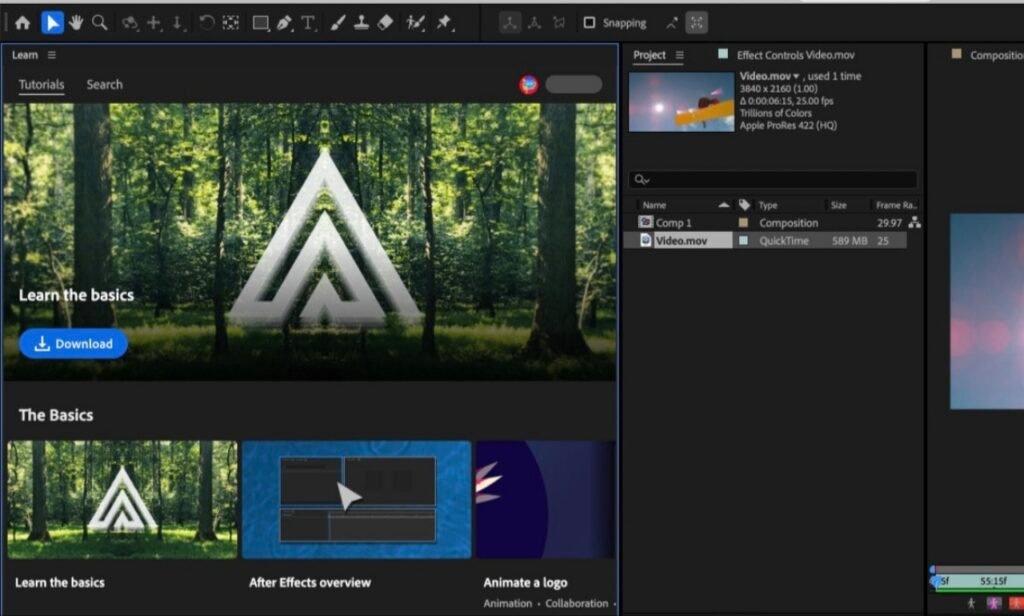
Workspaces in After Effects are pre-arranged panel layouts designed for different types of editing tasks. Instead of manually arranging panels every time, Adobe provides ready-made workspaces to improve efficiency.
🔹 Default Workspace
Best for beginners to understand overall structure
- This is the standard layout. It includes:
- Project Panel
- Composition Panel
- Timeline Panel
- Effects & Presets
- Preview Panel
Best for beginners to understand overall structure
🔹 Animation Workspace
Optimized for keyframe animation.
Optimized for keyframe animation.Focuses more on:
- Timeline
- Graph Editor
- Motion controls
Useful for motion graphics artists and explainer video creators.
🔹Effects Workspace
Designed for heavy visual effects editing.Gives better access to:
- Effects Controls
- Layer properties
- Adjustment layers
Helpful when color grading footage or adjusting tones.
👉 Tip: You can also create a Custom Workspace and save it according to your editing style.
2️⃣ Folder Structure – Professional Project Organization
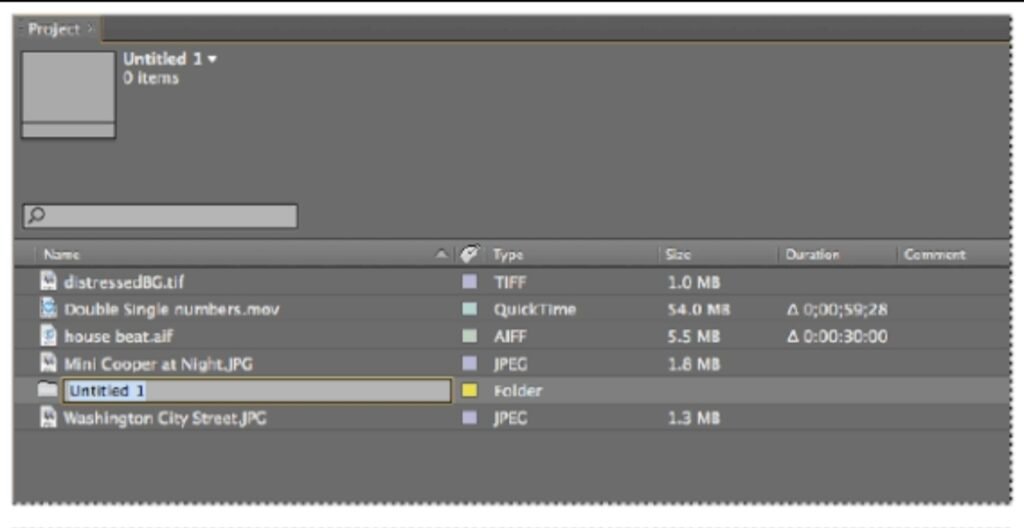
Professional editors never keep files randomly. Proper folder structure saves time and prevents missing files.
📂 Recommended Folder Structure:
Inside After Effects Project Panel:
- 📁 Footage
- 📁 Audio
- 📁 Images
- 📁 Precomps
- 📁 Solids
- 📁 Exports
On your computer storage:
Project Name
├── Footage
├── Audio
├── Assets
├── Project File
├── Renders
Why this is important:
- Faster editing
- Easy revisions
- Safe file backup
- Professional workflow
If you work with clients, this organization improves trust and delivery quality.
3️⃣ Import Settings, Composition & Sequence Ratios
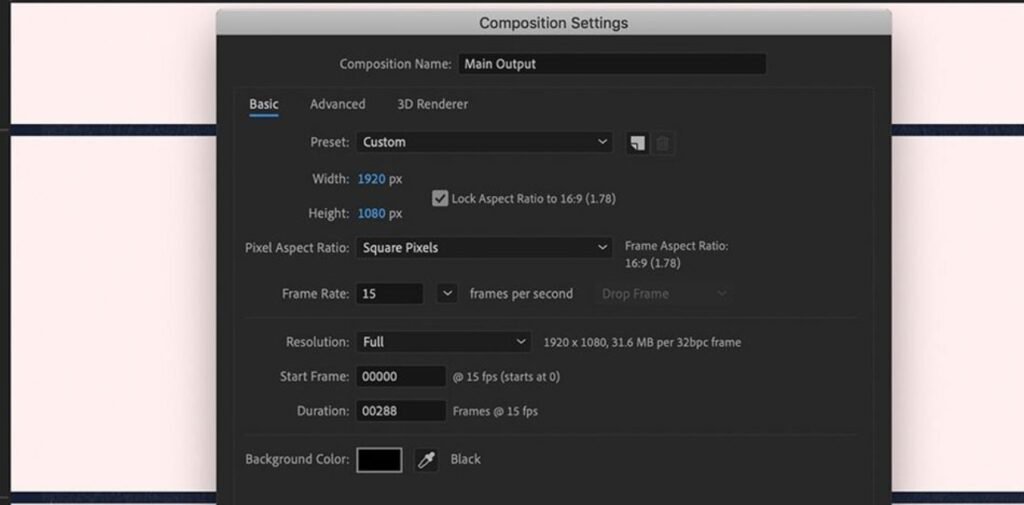
Import Methods:
- File → Import → File
- Drag & Drop
- Import as Footage
- Import as Composition
If you import layered PSD or AI files, choose Composition to maintain layers.
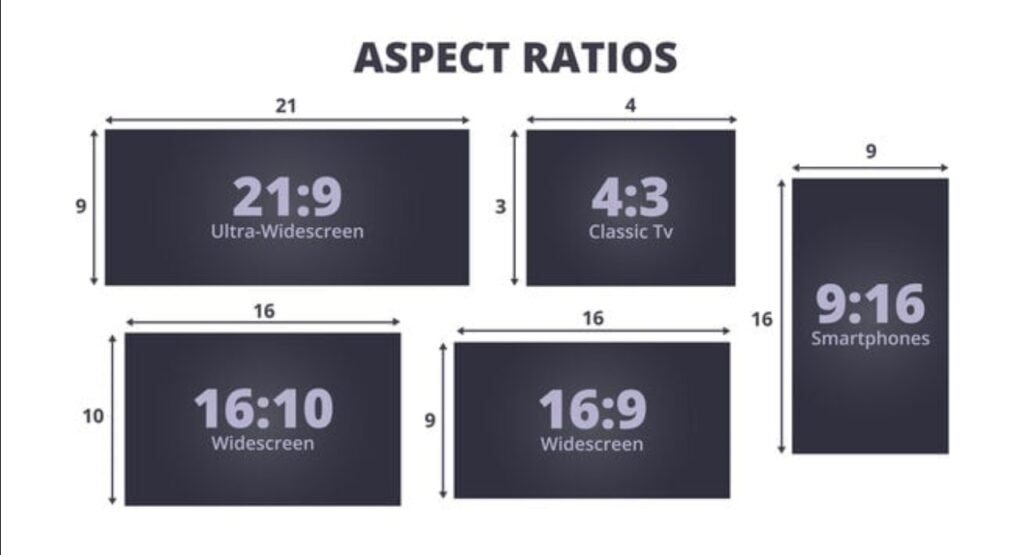
📐 Important Composition Ratios & Uses
16:9 (1920×1080)
- YouTube videos
- Online courses
- Films
9:16 (1080×1920)
- Instagram Reels
- YouTube Shorts
- TikTok
1:1 (1080×1080)
- Instagram posts
- Facebook ads
4:5
Social Media Marketing
4️⃣ Timeline – Complete Detailed Explanation
Frame Rate:
- 24fps → Cinematic look
- 30fps → Standard YouTube
- 60fps → Smooth motion
👉 Always match composition settings with your final output platform
🎬 Layers (Video Tracks Concept)
Unlike Premiere Pro, After Effects uses Layers instead of traditional tracks.
Top layer = visible first
Bottom layer = background
Each layer contains:
Transform properties (Position, Scale, Rotation, Opacity)
Effects
Masks
Blending modes
🔊 Audio Layers
Audio can be imported like video.
Important features:
Waveform preview
Audio keyframes
Stereo controls
Press LL (double L) to see audio waveform quickly.
⏱ Keyframes & Animation
Keyframes are points that define animation.
Steps:
🧭 Timeline Tools Explained
- Enable stopwatch
- Move timeline indicator
- Change property value
After Effects automatically creates animation
Use Graph Editor for smooth motion.
- Playhead → Shows current frame
- Work Area → Select render area
- Zoom Slider → Adjust timeline zoom
- Snapping → Align layers perfectly
🧩 Pre-composition
- Pre-comp is grouping layers into one
- composition.Benefits:Cleaner
- timelineComplex animation
- managementEasier effects control
.
5️⃣ Professional Editing Workflow Summary
Create organized folder structure
Import files properly
Set correct composition ratio
Arrange layers properly
Animate using keyframes
Use pre-comps for complex scenes
Render using proper export settings
Recommended Amazon Learning Resources
You can explore these categories on Amazon for deeper learning. Thank you for visiting our site
Photo’s editing
Ok brother