
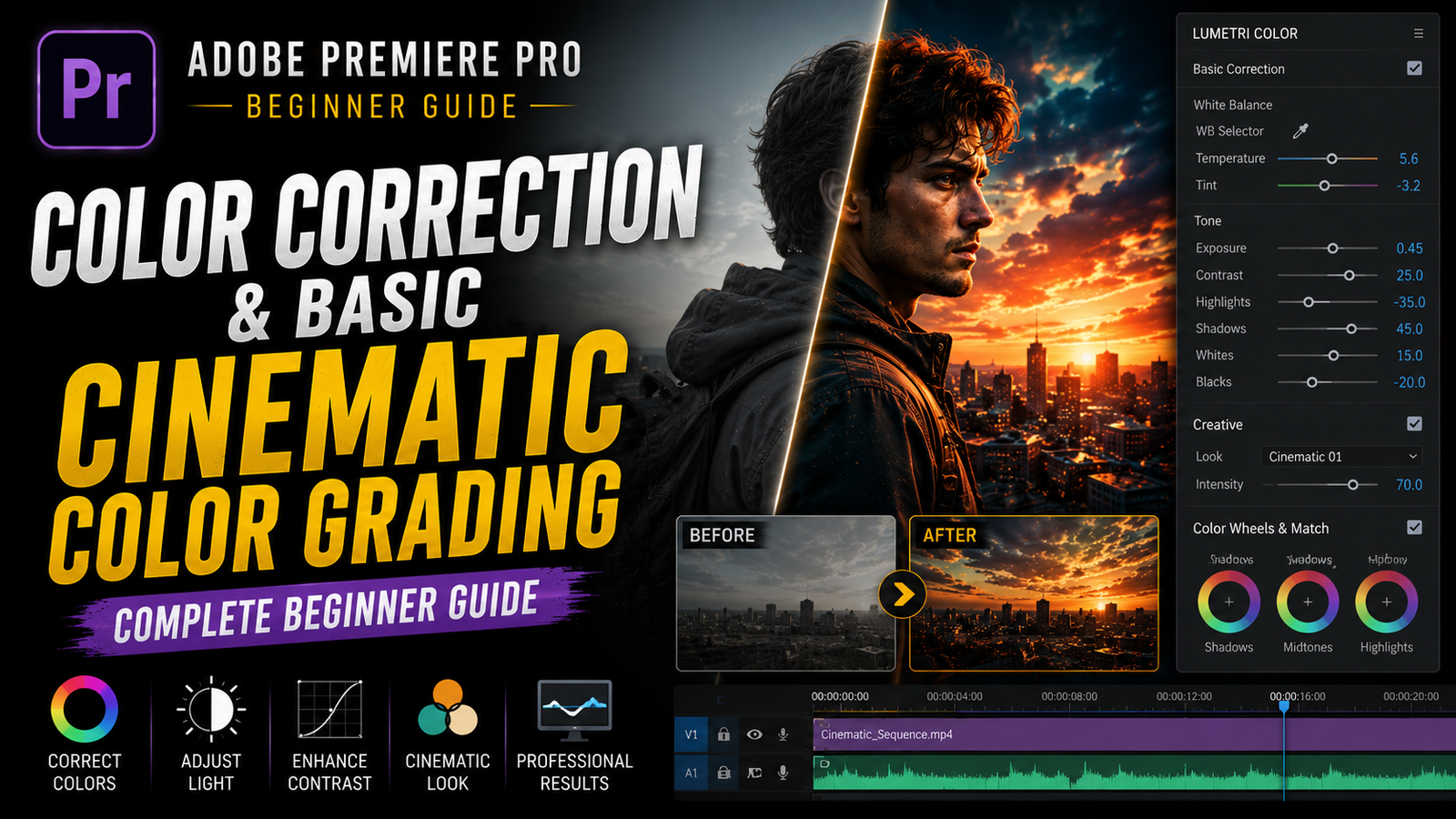
Color plays a huge role in video editing because it directly affects the mood, emotion, and overall visual quality of a video. Even simple footage can look cinematic and professional with proper color correction and grading. Many beginners focus heavily on transitions, effects, and animations, but professional editors understand that color is one of the most important parts of storytelling. Movies, advertisements, YouTube videos, gaming edits, travel vlogs, music videos, and cinematic reels all use color grading to create atmosphere and visual consistency. Adobe Premiere Pro includes powerful built-in tools that allow beginners to improve footage quality without needing advanced plugins or expensive software. In this guide, we will learn the difference between color correction and color grading, how the Lumetri Color panel works, how to fix bad-looking footage, and how to create simple cinematic looks that improve video quality naturally.
Before learning cinematic grading, beginners should first understand the difference between color correction and color grading because these terms are often confused. Color correction is the process of fixing footage so it looks natural and balanced. This includes adjusting brightness, contrast, white balance, shadows, highlights, and exposure. Color grading happens after correction and focuses on creating a specific style or mood. For example, cinematic teal-orange tones, dark dramatic shadows, warm sunset colors, or cold blue environments are examples of grading styles.
Many beginners immediately apply heavy cinematic presets without correcting footage first. This often creates unnatural results because the original clip is not balanced properly. Professional editors always correct footage before applying creative grading because clean base footage produces much better final results.
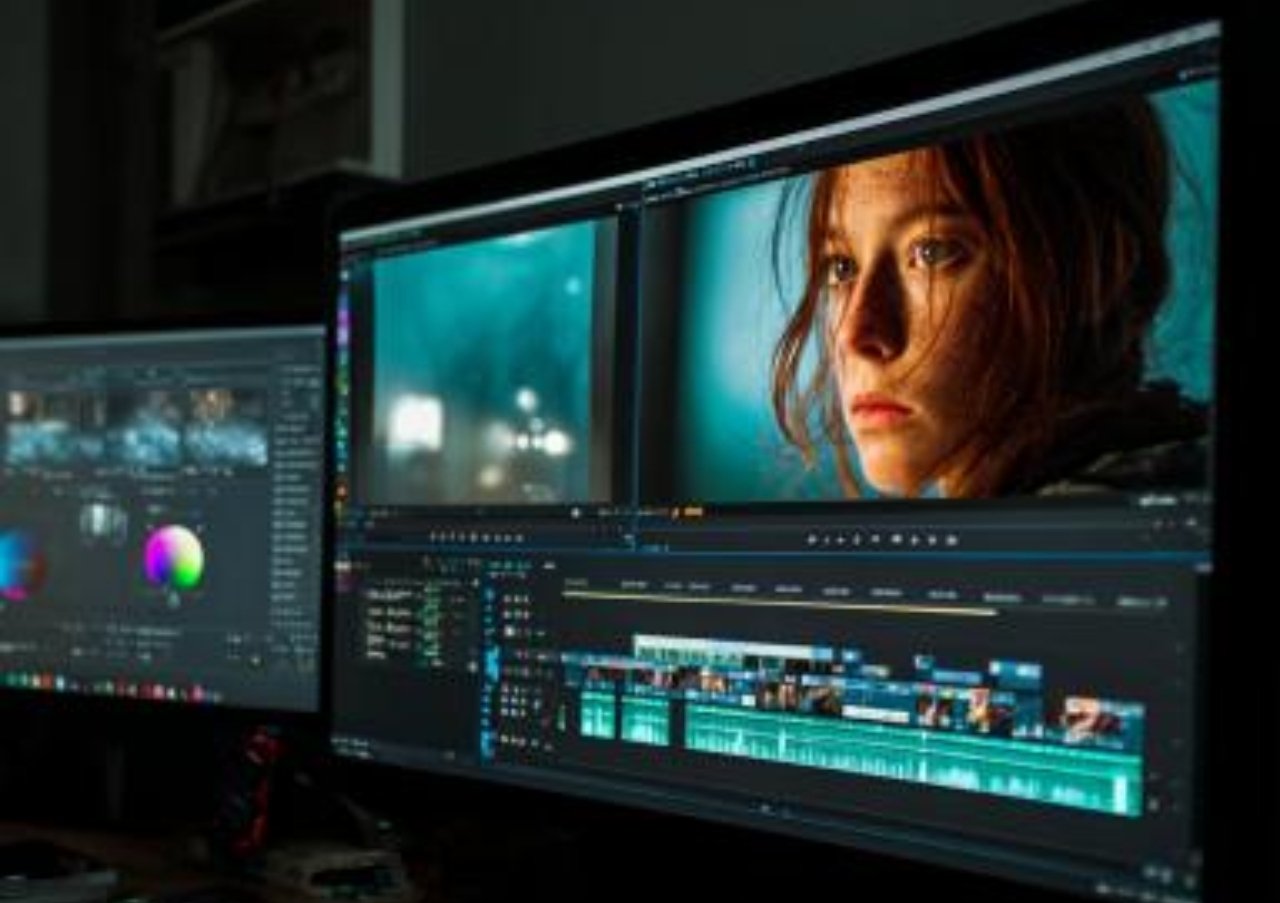
To start color correction in Premiere Pro, open the Color workspace from the top menu. This workspace automatically displays the Lumetri Color panel, which contains all the main color tools. Import your footage and drag it into the timeline. Select the clip you want to edit, then begin adjusting settings inside Lumetri Color.
🎬 Understanding the Lumetri Color Panel
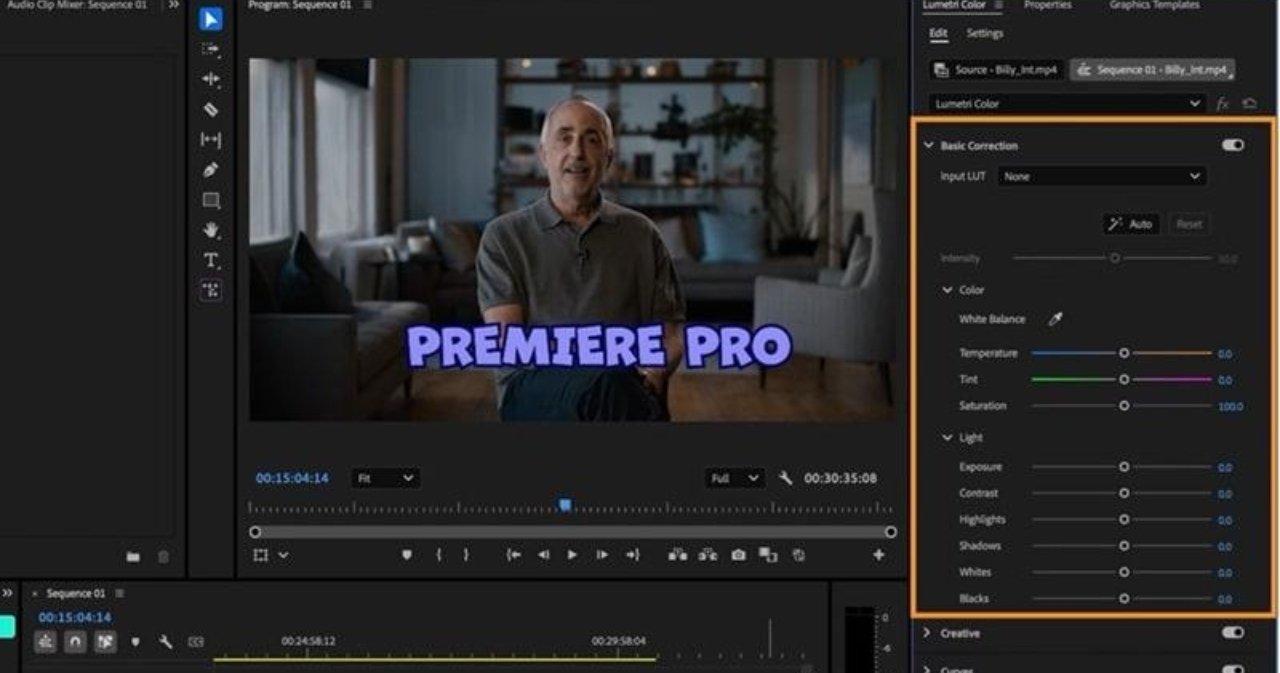
The Basic Correction section is usually the first place editors begin working. Exposure controls overall brightness, while Contrast increases the difference between bright and dark areas. Highlights control bright regions such as skies or lights, while Shadows affect darker areas. Whites and Blacks help fine-tune the brightest and darkest parts of the image.
White Balance is another extremely important setting. Sometimes footage appears too blue or too orange depending on lighting conditions. Temperature and Tint controls help restore natural colors. For example, footage recorded under indoor yellow lighting may require cooler temperature adjustments to look balanced.
One mistake beginners often make is pushing settings too aggressively. Overexposed highlights, crushed shadows, and extremely saturated colors can quickly make footage look unrealistic. Professional cinematic color grading is usually subtle and controlled rather than extreme.
After correcting the footage, the next step is creative grading. Premiere Pro includes a Creative section inside Lumetri Color where editors can apply stylistic looks and cinematic adjustments. Many creators use LUTs, also called Lookup Tables, to apply pre-made cinematic color styles. LUTs can create dramatic visual transformations quickly, but beginners should use them carefully because every clip reacts differently depending on lighting and camera settings.
⚡ Basic Cinematic Color Grading
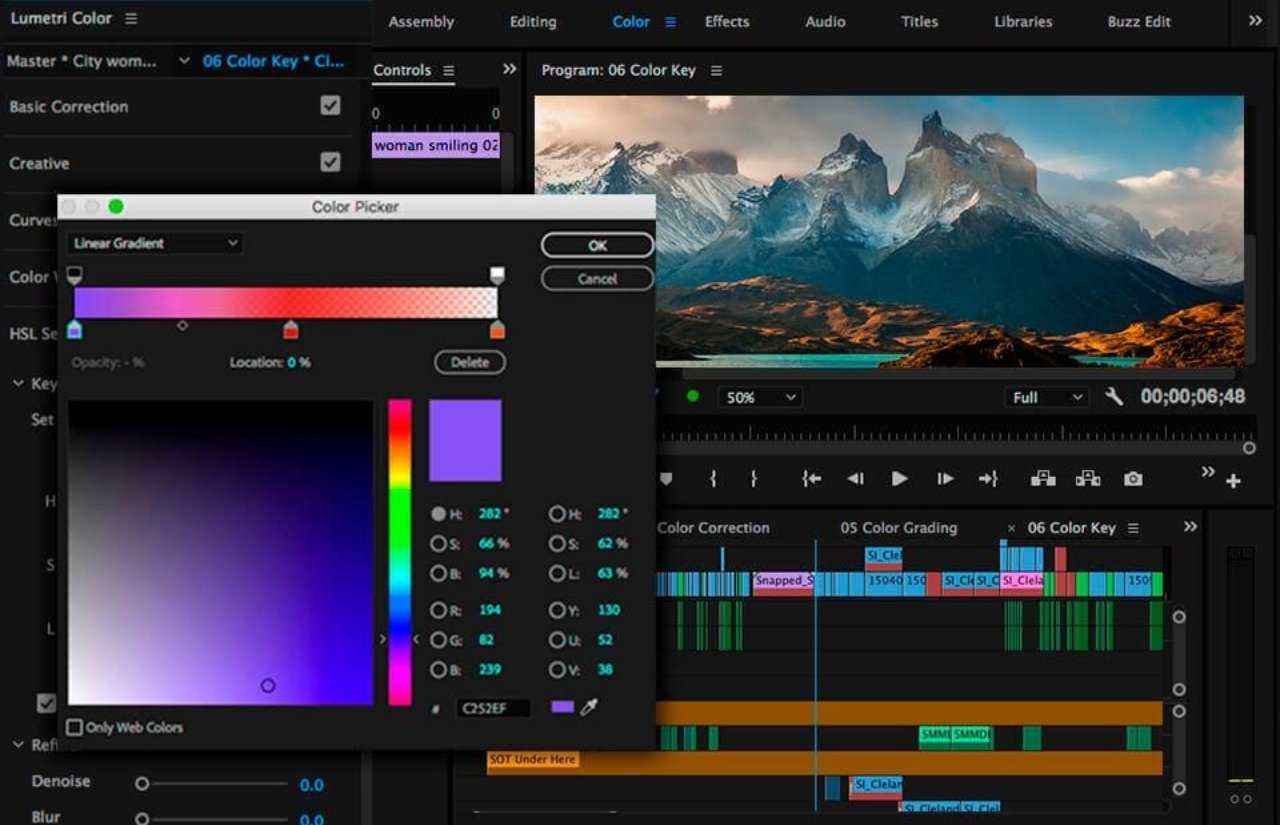
One of the most popular cinematic styles is the teal-and-orange look. This style works because orange skin tones contrast naturally against teal shadows and backgrounds. Many Hollywood films use this technique because it creates visual separation and cinematic atmosphere. However, beginners should avoid making colors too intense because exaggerated teal-orange grading often looks artificial.
Curves are another powerful color tool inside Premiere Pro. RGB Curves allow editors to control brightness and contrast more precisely. Slight S-curve adjustments are commonly used to create cinematic contrast by deepening shadows and enhancing highlights gently. Hue curves allow selective color adjustments, which means specific colors can be changed without affecting the entire image.
Another important concept in cinematic grading is saturation. Saturation controls color intensity. Increasing saturation slightly can make footage feel more vibrant, while reducing saturation can create moody and dramatic atmosphere. Many cinematic scenes actually use lower saturation than beginners expect because subtle colors often feel more professional.
Skin tone protection is also very important during grading. Human skin should generally look natural even when applying stylized cinematic colors. Beginners often accidentally create orange or green-looking skin during heavy grading. Professional editors carefully balance grading so subjects remain realistic while backgrounds and shadows carry more stylized tones.
🎨 Shadows, Highlights & Mood Creation
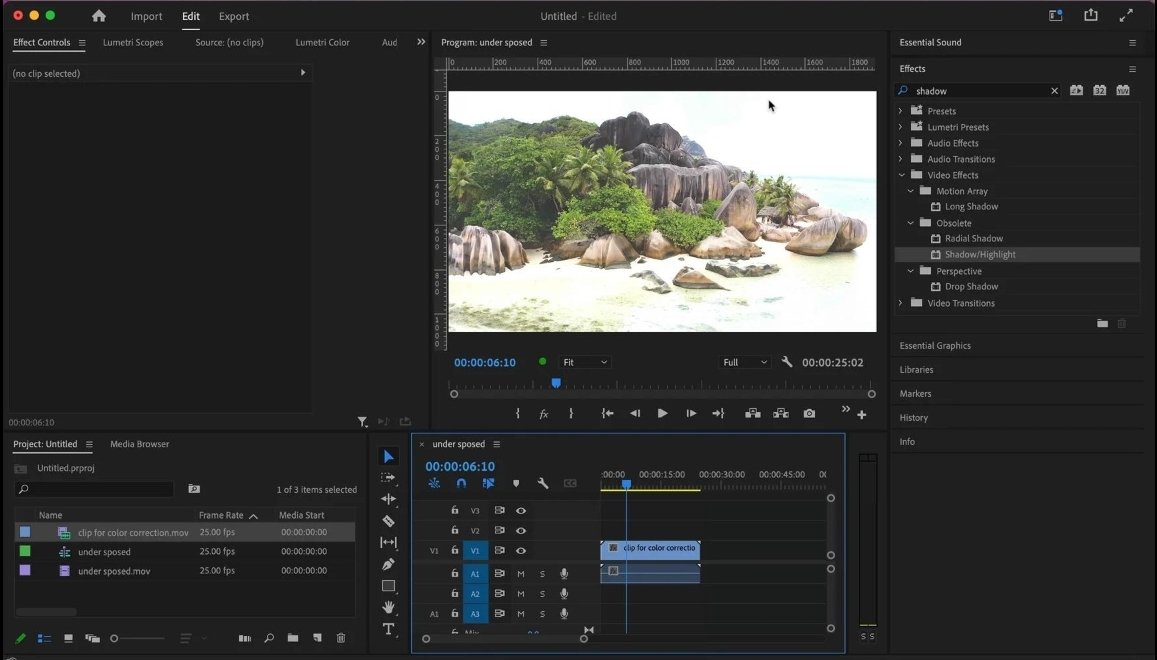
Lighting conditions also affect how grading should be approached. Bright outdoor footage usually requires different treatment compared to dark indoor scenes. Low-light footage often contains noise and reduced detail, so heavy grading may create unpleasant artifacts. Understanding footage limitations helps editors make smarter adjustments.
Scopes are another useful professional feature inside Premiere Pro. Video scopes help monitor brightness and color levels accurately. Beginners often rely only on how footage looks visually, but screens can display colors differently. Scopes provide technical accuracy and help maintain balanced exposure.
The Vectorscope is especially useful for monitoring skin tones and saturation, while the Waveform monitor helps control brightness levels. Although scopes may look technical initially, understanding them gradually improves grading quality significantly.
Another useful workflow technique is using adjustment layers for color grading. Instead of applying effects to individual clips one by one, adjustment layers affect all clips beneath them. This helps maintain consistent color across the entire sequence and saves editing time. Professional editors use adjustment layers frequently during cinematic projects.
Color matching between clips is another important beginner skill. Different cameras, lighting conditions, or recording times often create inconsistent footage colors. Matching exposure, white balance, and contrast between clips helps create smooth visual continuity. Viewers may not notice exact grading styles consciously, but they immediately notice inconsistent color changes between shots.
Another common beginner mistake is overusing sharpening and clarity effects. Excessive sharpening can create noisy and unnatural footage. Professional cinematic edits usually prioritize smooth visuals and balanced detail rather than harsh digital sharpness.
Performance optimization also matters during color grading because Lumetri effects can use significant system resources. Low-end PCs may experience slower playback with multiple color effects applied. Reducing playback resolution and rendering previews can improve editing performance significantly.
Project organization becomes important as grading workflows become more advanced. Many editors create separate bins for LUTs, adjustment layers, music, footage, and exports. Organized projects save time and improve efficiency, especially during larger edits.
The most important thing beginners should remember is that cinematic grading supports storytelling rather than distracting from it. Good grading enhances emotion, atmosphere, and visual consistency naturally. It should make footage feel polished without overwhelming the viewer.
Adobe Premiere Pro’s color correction and grading tools allow beginners to transform ordinary footage into cinematic visuals suitable for YouTube, travel videos, gaming edits, advertisements, interviews, and professional content creation. Once beginners understand exposure balancing, white balance, Lumetri Color, curves, saturation, shadows, highlights, and cinematic workflow techniques, they can create cleaner and more visually impressive videos. With regular practice, careful observation, and creative experimentation, even simple footage can achieve professional cinematic quality that stands out beautifully across every platform.