
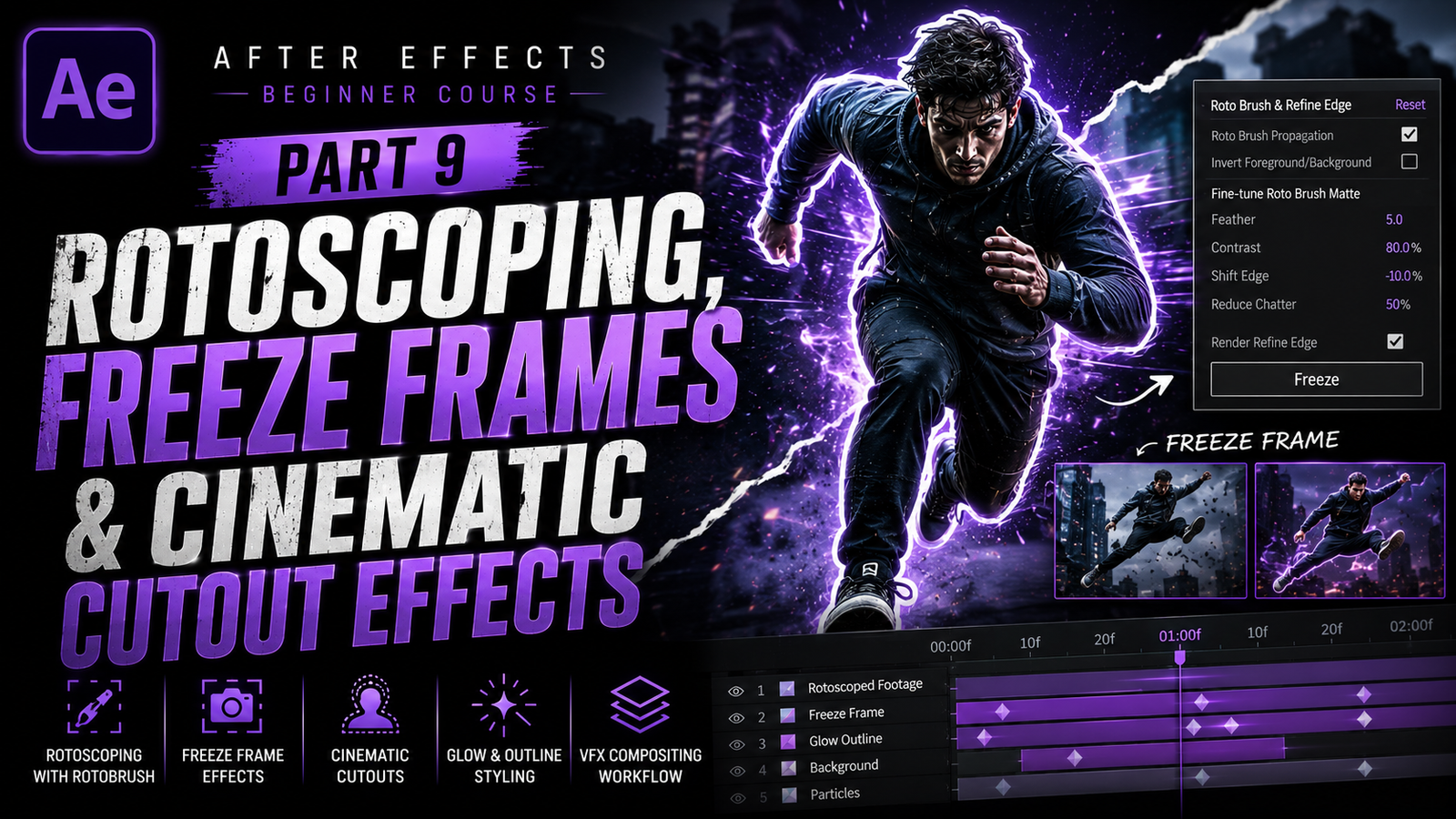
Adobe After Effects is famous for its powerful visual effects and cinematic editing tools, but one feature that truly makes editors feel like professional VFX artists is rotoscoping. If you have ever seen videos where a person is separated from the background, frozen in motion, highlighted with glowing outlines, or placed inside another environment without a green screen, then rotoscoping was probably used. Modern music videos, sports edits, gaming montages, cinematic reels, advertisements, and movie scenes frequently use these techniques because they instantly create dramatic and eye-catching visuals. For beginners, rotoscoping may sound complicated at first, but After Effects includes tools that make the process easier than many people expect. In this part of the beginner course, we will learn how rotoscoping works, how freeze frames are created, how cinematic cutout effects are made, and how these techniques are used to create professional-looking edits.
Rotoscoping simply means separating a subject from the background frame by frame. Before modern software existed, editors had to manually trace subjects in every single frame, which took an enormous amount of time. Today, After Effects provides tools like the Rotobrush that automatically help isolate subjects much faster. While rotoscoping still requires patience and cleanup work, it is now far more beginner friendly than it used to be.
To start rotoscoping, import your footage into After Effects and create a composition. Choose footage with a clearly visible subject because strong contrast between the subject and background makes the process easier. Open the layer panel by double-clicking the video layer, then select the Rotobrush Tool from the toolbar. Once selected, paint over the subject you want to isolate. After Effects automatically analyzes the footage and attempts to separate the subject from the background.
🎬 Understanding Rotoscoping
At first, the result may not look perfect. Some parts of the background may still remain visible, or certain parts of the subject might disappear accidentally. This is completely normal, especially with difficult footage. The Rotobrush includes add and subtract controls so you can refine the selection manually. Painting over missing areas adds them back into the subject selection, while subtracting removes unwanted background areas.
One important thing beginners should understand is that rotoscoping quality depends heavily on footage quality. Videos with clean lighting, high contrast, and smooth movement are much easier to isolate. Hair, motion blur, smoke, and fast movement can make rotoscoping more difficult. Professional VFX artists often spend a lot of time refining edges because small details greatly affect realism.
After the subject is isolated properly, After Effects analyzes movement frame by frame. This process is called propagation. Beginners should carefully preview the footage because tracking errors can happen during fast movement. If the selection drifts away from the subject, small manual corrections may be necessary. Patience is extremely important during this stage because even professionals need to refine rotoscope work carefully.
Once the rotoscoping is complete, freeze the rotoscope using the Freeze button. Freezing locks the analysis and prevents After Effects from recalculating the selection repeatedly. This also improves playback performance during editing.
⚡ Freeze Frames & Motion Effects
One of the most popular uses of rotoscoping is creating freeze frame effects. Freeze frames are commonly seen in sports edits, anime-inspired montages, gaming videos, and cinematic reels. The idea is simple: freeze the subject during action while adding dramatic effects around them. For example, a football player can freeze mid-air while glowing outlines, particles, text, and camera movement continue around them.
To create a freeze frame, move to the desired frame in the timeline and use “Time > Freeze Frame” or duplicate the frame as a still image.
Once frozen, the subject can be enhanced with effects such as glow, shadows, motion lines, and cinematic color grading. Many editors also add camera zoom and shake effects to increase intensity. Cutout effects are another popular style related to rotoscoping. In this technique, the subject is separated completely from the background and placed over graphic designs, particles, abstract colors, or cinematic environments. Social media creators often use these effects because they make videos look dynamic and modern. Even simple cutout effects can attract attention immediately when combined with strong typography and music sync.
One powerful beginner trick is adding outlines around the subject.
This can be done using effects like Stroke or Glow. White outlines are commonly used in sports edits, while neon-colored glows are popular in gaming montages and cinematic reels. However, beginners should avoid adding too many effects at once because simple clean visuals usually look more professional.
🎨 Cinematic Cutout & Glow Effects
Color grading also plays a huge role in making rotoscope effects feel cinematic. Professional editors often use teal-orange color grading, dark shadows, and strong contrast to create dramatic visuals. Adjustment layers help apply color effects across the entire composition consistently. Effects like Curves, Lumetri Color, and Exposure adjustments are commonly used to create cinematic mood.
Motion blur becomes very important when subjects move quickly. Without motion blur, movement can look unnatural and robotic. After Effects allows motion blur to be enabled for layers and compositions, making movement feel smoother and more realistic. Cinematic edits almost always use motion blur because it adds realism and polish.
Another creative use of rotoscoping is background replacement without a green screen. Once the subject is isolated, any environment can be placed behind them. For example, a person walking in a normal street can suddenly appear inside a futuristic cyberpunk city or cinematic landscape. Combining rotoscoping with color correction and lighting adjustments creates powerful visual storytelling effects.
Text animation can also be combined with rotoscope effects. Many professional edits place animated typography behind or around isolated subjects. This creates layered cinematic depth and improves visual engagement. Beginners can start with simple text reveals and slowly experiment with more advanced compositions later.
🔥 Professional Rotoscope Workflow Tips
Performance optimization becomes very important in rotoscope projects because frame analysis and edge calculations require significant system power. Low-end PCs may struggle during playback, especially with high-resolution footage. Beginners can improve performance by lowering preview quality, pre-rendering heavy compositions, and freezing completed rotoscope calculations.
Proxy workflows also help improve editing speed on weaker systems.
Project organization is another skill beginners should develop early. Rotoscope projects often contain multiple compositions, adjustment layers, visual effects, text layers, and audio tracks. Naming layers properly and organizing assets into folders makes editing easier and more professional. Many beginners ignore organization initially and later become confused when projects become larger.
The most important thing beginners should remember is that rotoscoping requires practice and patience. Even advanced editors spend time fixing edges and refining movement. The goal is not perfection immediately, but gradual improvement through experimentation and real project experience. Starting with simple footage and slowly moving toward more difficult scenes is the best learning approach.
Rotoscoping, freeze frames, and cinematic cutout effects are some of the most visually exciting tools inside Adobe After Effects because they allow creators to separate subjects, create dramatic visual moments, and build cinematic storytelling scenes without expensive equipment. These techniques are used everywhere in sports edits, music videos, gaming montages, advertisements, YouTube intros, reels, and modern visual effects projects.
Once beginners understand Rotobrush, freeze frames, cutout effects, glow styling, color grading, and compositing workflow, they can create powerful cinematic edits that look professional and engaging. With regular practice, creative experimentation, and attention to detail, even simple footage can be transformed into dynamic cinematic visual content that stands out beautifully across every platform.