
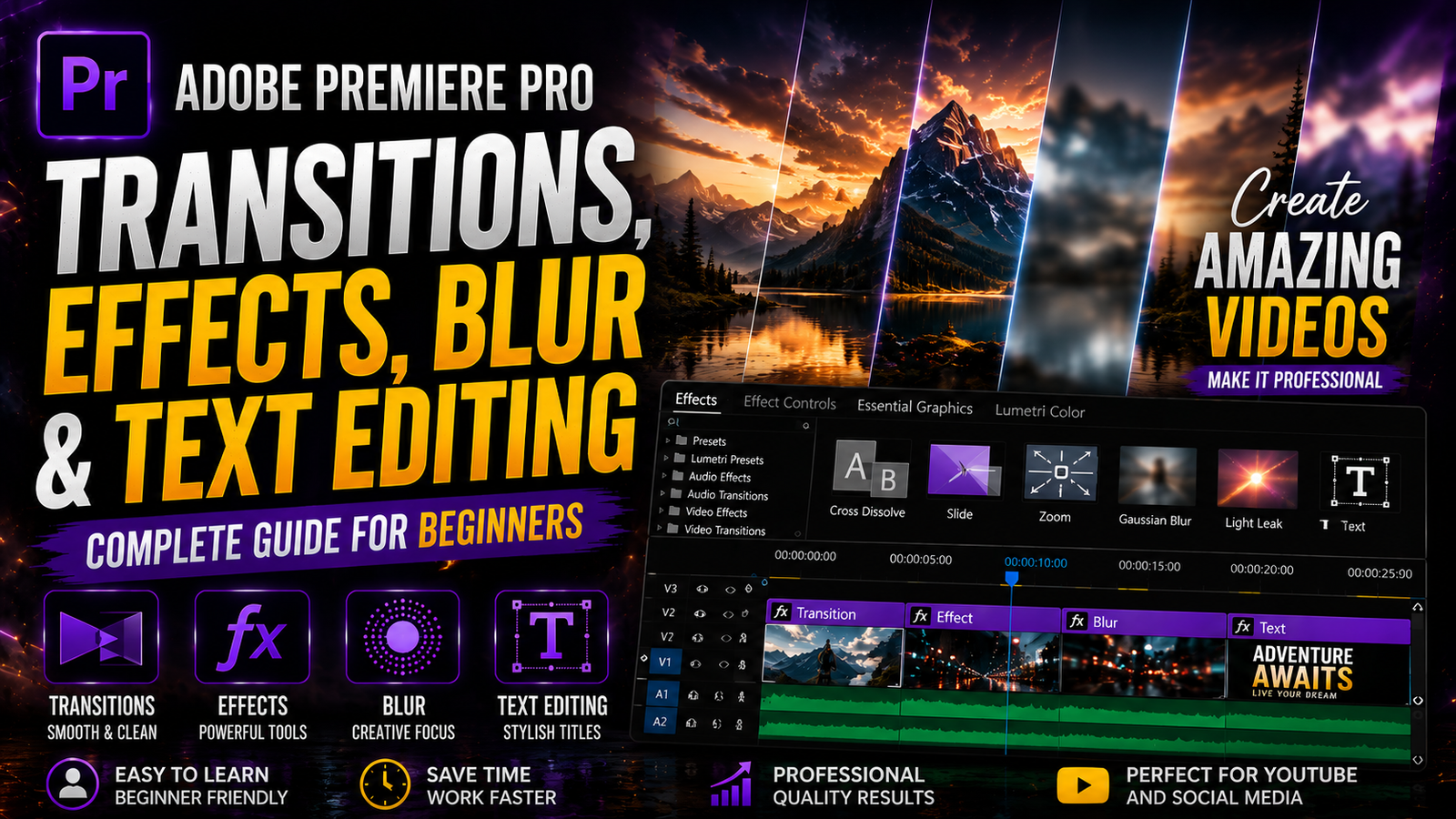
Transitions, video effects, blur tracking, text editing are some of the most important features in Adobe Premiere Pro that help you create professional videos. If you know these tools properly, your editing quality will improve a lot and your videos will look smooth and clean.
🎬 Transitions – How to Apply
Transitions are used to transition smoothly from one clip to another. Transitions will make your video look more professional than a hard cut. To use a transition, open Video Transitions in the Effects panel and choose a transition, such as Cross Dissolve. Drag and drop between two clips in the timeline. You can also alter the length of the transition by dragging the edges. For beginners, simple transitions are best, and not to overuse them.
🎨 Video Effects – How to Use
You can enhance or modify the appearance of your clips with video effects. You’ll find them in the Effects panel under Video Effects. Many options like blur, stylize, color correction, etc. To add an effect, drag it onto your clip in the timeline. Once applied, click on the Effect Controls panel and tweak the settings. For example, if you apply a blur effect, you can easily increase or decrease the amount of blur.
🔒 Blur Moving Objects (Face / Buildings Tracking)
Video effects let you change up the look of your clips. Just head over to the Effects panel and check under Video Effects—you’ll see all sorts of choices like blur, stylize, and color correction. To use one, just drag it right onto your clip in the timeline. After that, open the Effect Controls panel where you can adjust the effect’s settings. Say you’ve added a blur—you can dial the blur up or down until it looks just right.
🔤 Text Editing – All Options Explained
Text is crucial in titles and captions. Add text with the Type Tool or the Essential Graphics panel. You can edit font, size, color and alignment after you add text. You can also add stroke (outline), background and change spacing. Stroke makes text more visible, and background makes it more readable. You can find all these options in the Edit section of Essential Graphics. My name is John and I’m from New York.
✅ Final Thoughts
Learning transitions, effects, blur tracking and text editing will help you make better and more professional videos. It may seem confusing at the beginning but with practice everything becomes easy. Keep it simple. Use simple effects, clean transitions and readable text. Don’t over edit, keep your videos flowing. Once you have the basics down, you can advance to editing like color grading and animations.