
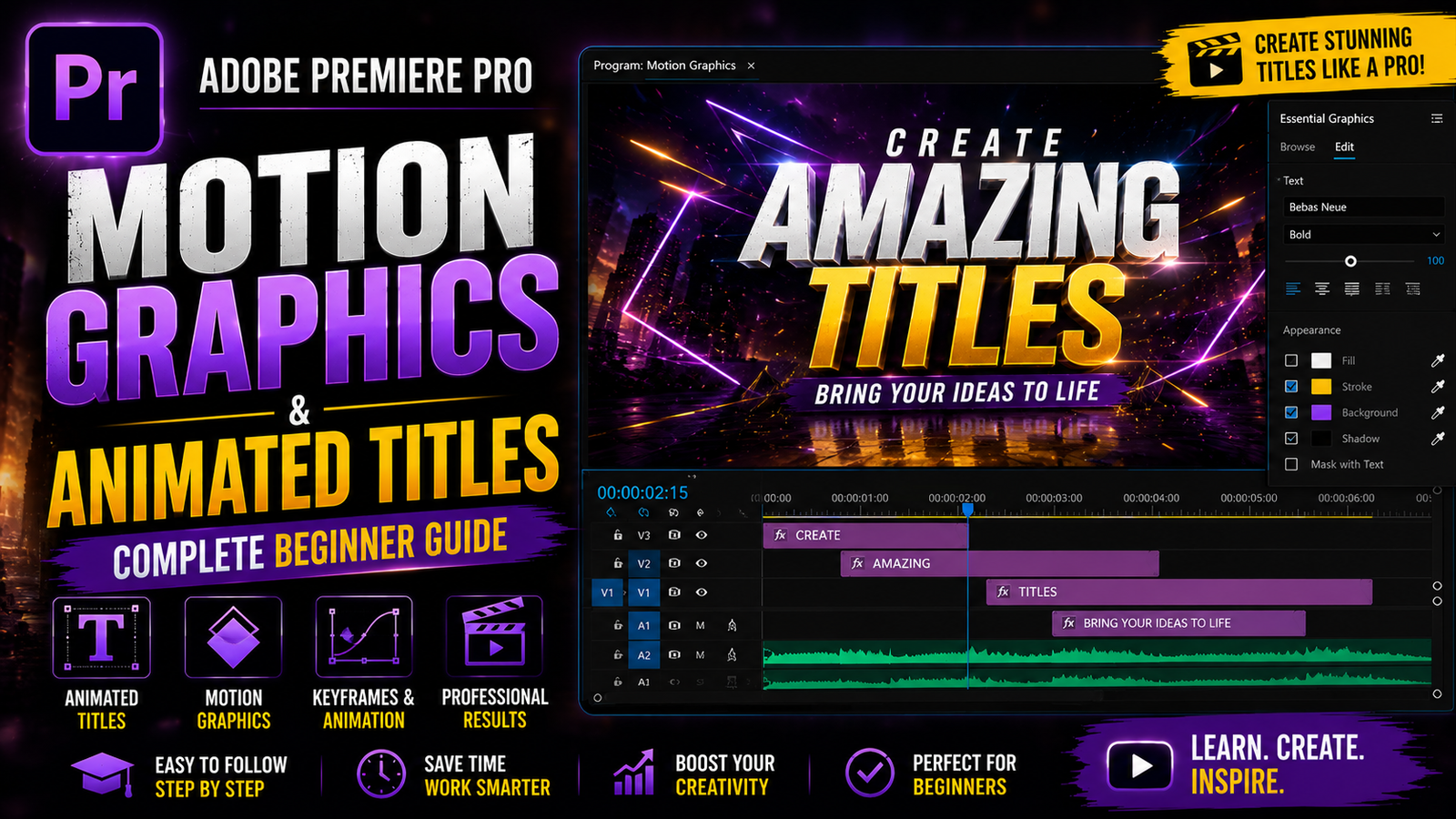
Adobe Premiere Pro is one of the most powerful video editing software applications used by creators, filmmakers, YouTubers, and editors worldwide. In this beginner guide, we will learn..
Motion graphics and animated titles are some of the most important features in Adobe Premiere Pro because they help make videos more professional, engaging, and visually attractive for platforms like YouTube, Instagram, Facebook, and commercial video projects. Many beginners think motion graphics are only for advanced editors, but Premiere Pro provides easy tools that allow anyone to create professional title animations and graphics without needing advanced software knowledge. Motion graphics are simply moving visual elements such as animated text, logos, lower thirds, intros, transitions, and graphical overlays that improve the overall presentation of a video. Learning these features can greatly improve video quality and viewer engagement because animated graphics make content more dynamic and visually interesting.
One of the easiest ways to start with motion graphics in Premiere Pro is by using the Essential Graphics panel. This panel provides tools for creating and editing text, shapes, animations, and templates directly inside Premiere Pro. To open it, go to Window and select Essential Graphics. Once opened, you can create a new text layer by selecting the Type Tool and clicking anywhere inside the Program Monitor. After typing your text, you can customize font, size, color, spacing, alignment, stroke, and background to create professional-looking titles. Choosing clean and readable fonts is important because viewers should easily understand the text on screen. Bold fonts work better for cinematic videos, while simple fonts are perfect for tutorials and educational content.
🎬 Essential Graphics & Motion Design
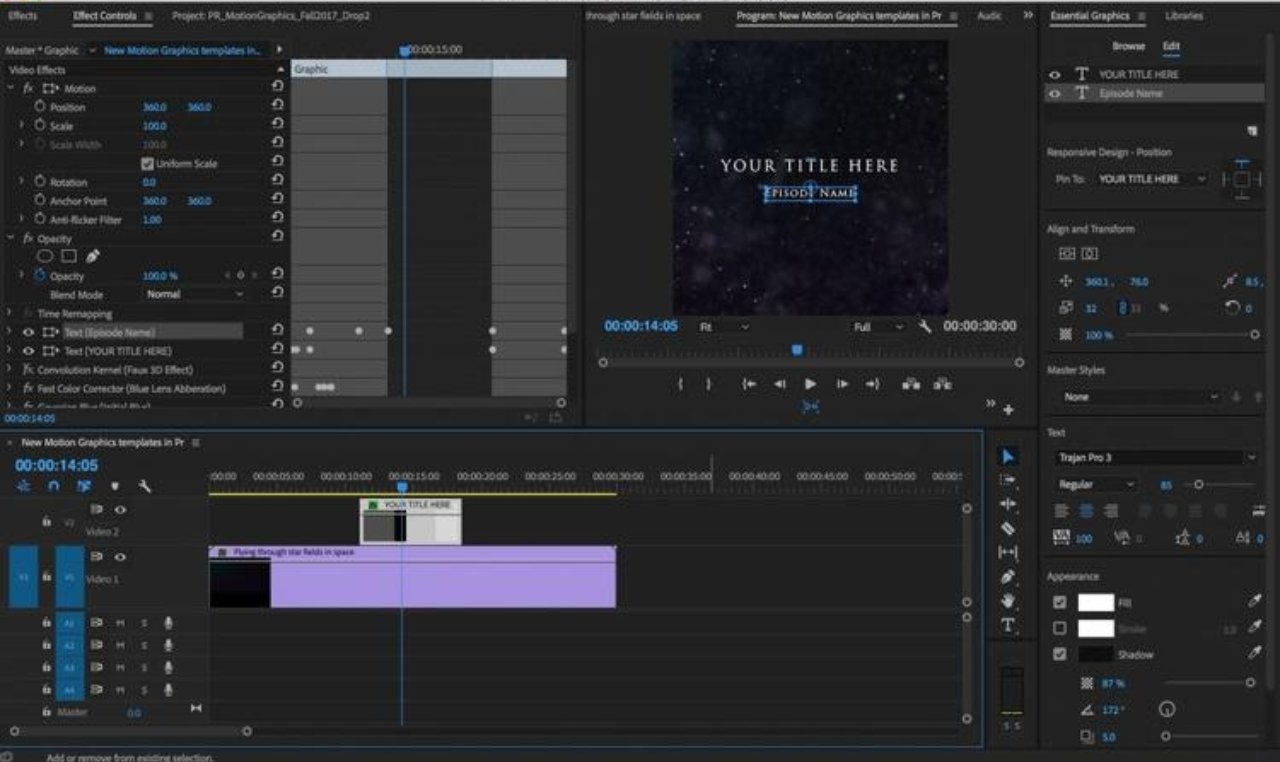
After creating your text, the next step is adding animation using keyframes. Keyframes are one of the most important concepts in motion graphics because they control movement and animation over time. Premiere Pro allows you to animate properties such as Position, Scale, Rotation, Opacity, and Anchor Point. For example, if you want your title to smoothly move from left to right, you can add a starting keyframe at the beginning of the timeline and another keyframe later with a different position. Premiere Pro automatically creates smooth motion between the two points. This technique can be used for almost every type of animation. Beginners usually start with simple fade-in and slide animations because they are easy to create and look professional. Opacity animation is commonly used to create fade-in and fade-out effects, while Scale animation is useful for zoom effects. Position animation helps move titles or graphics across the screen smoothly
⚡ Keyframes & Smooth Animation
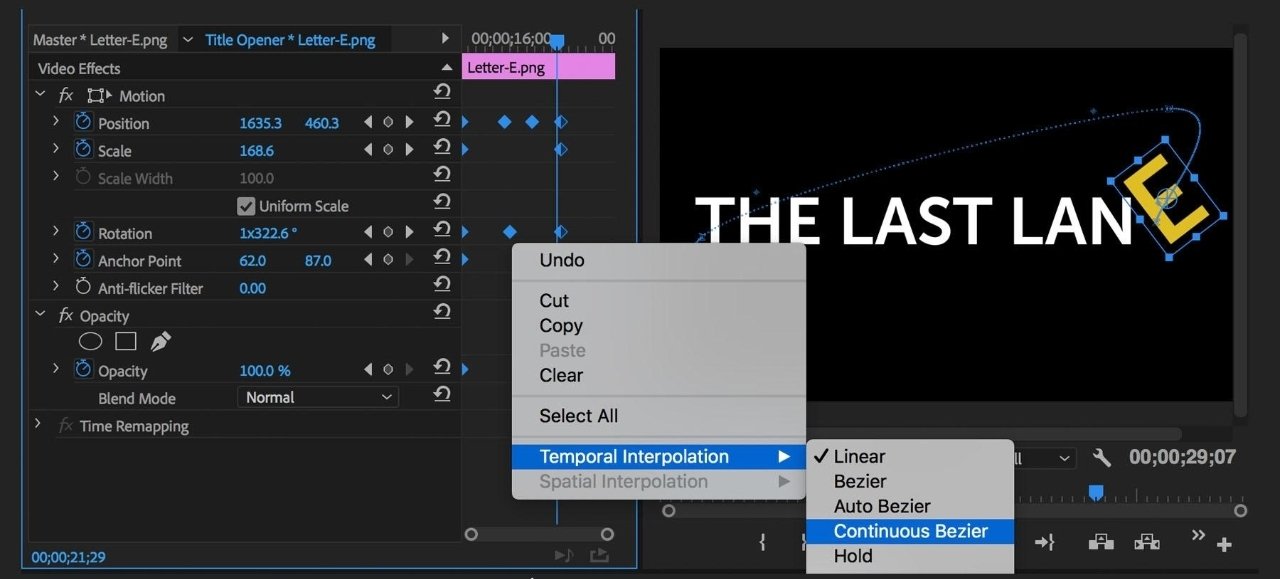
Another important feature for professional motion graphics is easing. Without easing, animations can look robotic and unnatural because movement starts and stops too suddenly. Premiere Pro provides Easy Ease options that make animations smoother and more cinematic. To apply easing, right-click on a keyframe and select Ease In or Ease Out. This creates natural acceleration and deceleration in motion, improving visual quality significantly. Motion blur can also improve animation quality because it adds realistic blur during movement, making transitions smoother and more cinematic. Although Premiere Pro has limited built-in motion blur compared to After Effects, you can still create cinematic results using directional blur and transform effects.
🎨 Animated Titles & Lower Thirds
Lower thirds are another essential part of motion graphics. These are text graphics usually displayed at the bottom of the screen to introduce names, locations, or important information. Many YouTube creators, interview editors, and professional video editors use lower thirds because they provide information without distracting viewers from the main content. You can create lower thirds in Premiere Pro using shapes and text layers inside the Essential Graphics panel. Adding smooth slide animations and opacity transitions makes them look modern and professional. Beginners should focus on creating clean and simple lower thirds rather than adding too many effects. Simple designs often look more professional than overly complicated graphics.
Premiere Pro also supports motion graphics templates called MOGRT files. These templates allow editors to use pre-made animated graphics and titles without creating everything manually. You can import MOGRT templates into the Essential Graphics panel and customize text, colors, and animations easily. This feature is very useful for beginners because it saves time and helps create professional results quickly. However, learning manual animation is still important because it improves your understanding of motion graphics and gives you more creative control.
🔥 Cinematic Motion Graphics Workflow
Another useful technique is combining motion graphics with transitions and sound effects. For example, adding whoosh sound effects during text animations makes the movement feel more impactful and cinematic. Syncing animations with music beats also improves video engagement because viewers naturally enjoy visuals that match audio rhythm. Timing is extremely important in motion graphics because poorly timed animations can feel distracting or unprofessional. Always preview your animations multiple times and adjust keyframes carefully for the best results
Exporting motion graphics properly is also important because some export settings may reduce animation quality. Using H.264 format with high bitrate settings helps maintain smooth motion and sharp text quality. If your animations appear blurry after export, increasing bitrate or enabling maximum render quality can improve results. Beginners should practice simple animations regularly before moving to advanced motion graphics. Start with text fade-ins, slide animations, and scale effects, then slowly experiment with more advanced techniques such as masking, motion blur, and layered animations. Over time, you will understand how professional editors create cinematic title sequences and engaging graphics.
Motion graphics and animated titles are powerful tools that can transform ordinary videos into professional content. Whether you create tutorials, YouTube videos, cinematic edits, gaming videos, promotional content, or social media reels, learning motion graphics will greatly improve your editing skills. Adobe Premiere Pro provides all the essential tools needed for creating smooth animations, professional titles, and cinematic graphics. By practicing consistently and understanding keyframes, easing, timing, and design principles, beginners can quickly improve their workflow and create high-quality professional videos that stand out on every platform.