
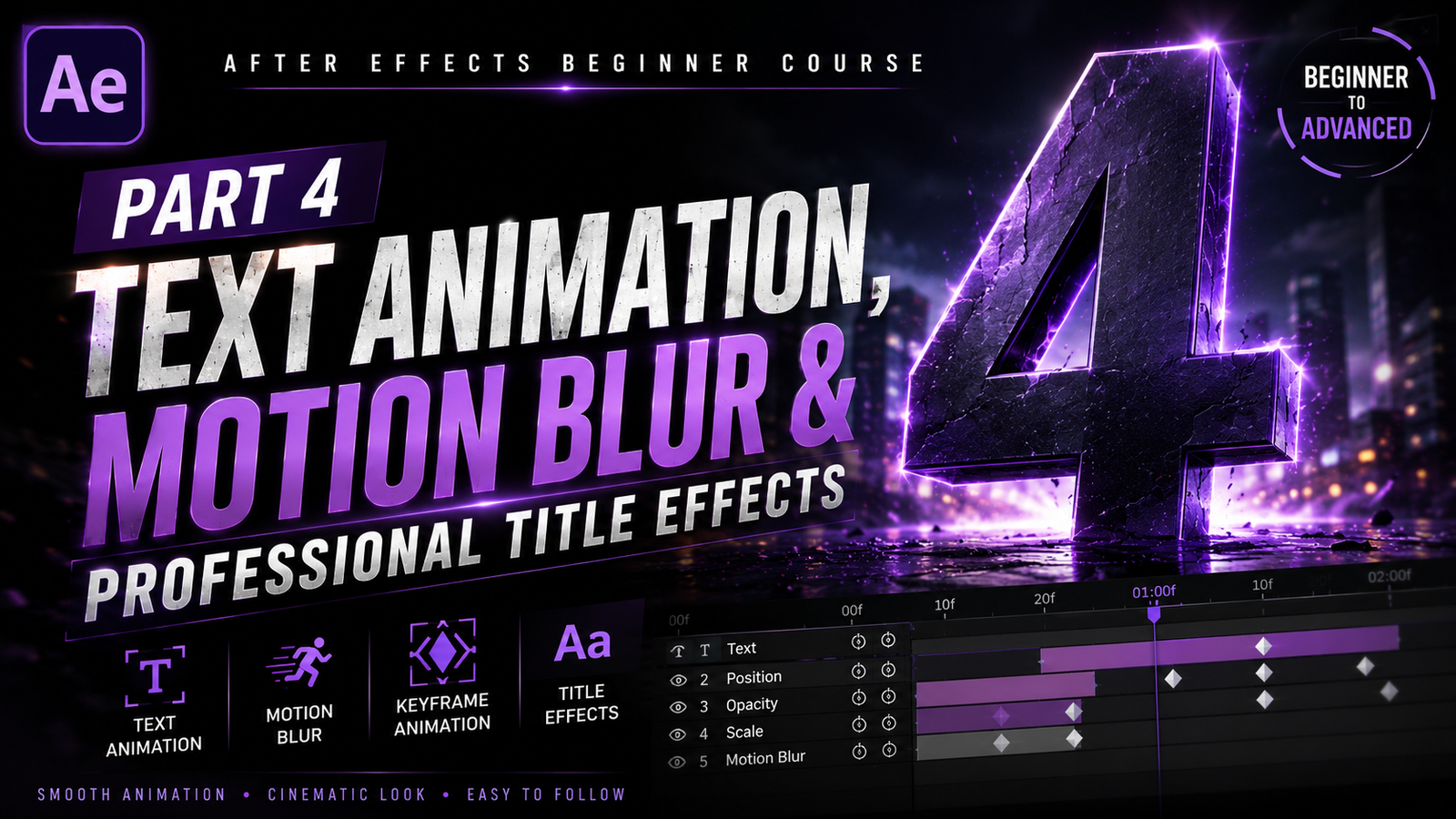
Adobe After Effects is one of the most powerful software applications for motion graphics and cinematic animations, and one of the biggest reasons creators love it is because of its professional text animation capabilities. Almost every YouTube intro, gaming montage, cinematic trailer, promotional video, reel, or social media advertisement uses animated text in some form. In the previous parts of this beginner course, we learned about the interface, compositions, layers, timelines, keyframes, and Easy Ease animations. Now in Part 4, we will focus on text animation, motion blur, and professional title effects because these are some of the most important skills every beginner editor should learn. Good text animation can completely change the look and feel of a video. Even simple movement with proper timing and motion blur can make titles look cinematic and professional. Many beginners try to add too many flashy effects immediately, but professional editors usually keep animations smooth, clean, and easy to read. Understanding the basics properly is more important than adding heavy effects.
🎬 Creating Text in After Effects
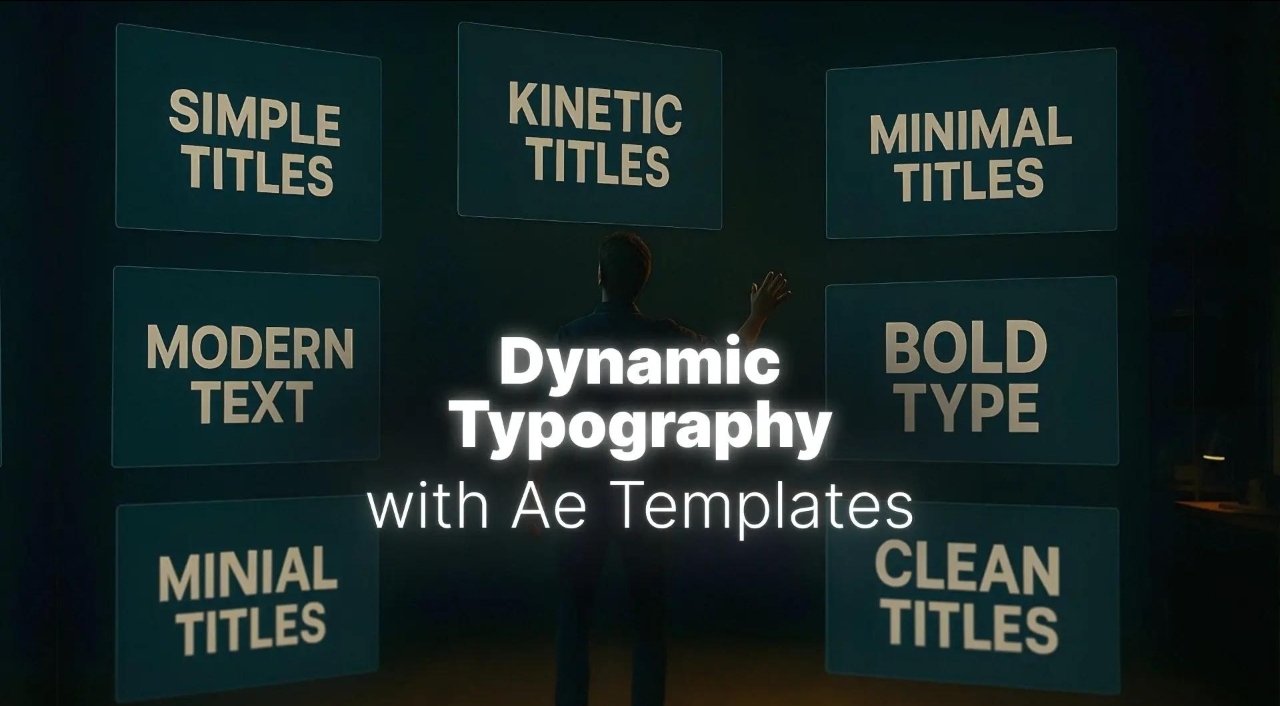
To create text in After Effects, select the Text Tool from the top toolbar and click anywhere inside the composition window. Once you type your text, a new text layer automatically appears inside the timeline. This text layer works just like any other layer and can be animated using Position, Scale, Rotation, Opacity, and other transform properties. Choosing the correct font is very important because typography directly affects video quality and viewer experience. Bold fonts are commonly used for cinematic trailers and gaming videos, while clean minimal fonts work better for tutorials and professional business videos. Beginners should avoid using too many different fonts in the same project because it can make videos look messy and unprofessional. Simple and consistent typography always looks cleaner.
One of the easiest beginner animations is the fade-in effect. This can be created by animating the Opacity property from 0% to 100%. Another popular effect is slide animation where text moves smoothly from one side of the screen to another. Combining Position and Opacity animations together creates smooth cinematic title reveals. Many professional YouTubers use these simple animations because they look clean and modern without distracting viewers from the content.
⚡ Text Animation Using Keyframes
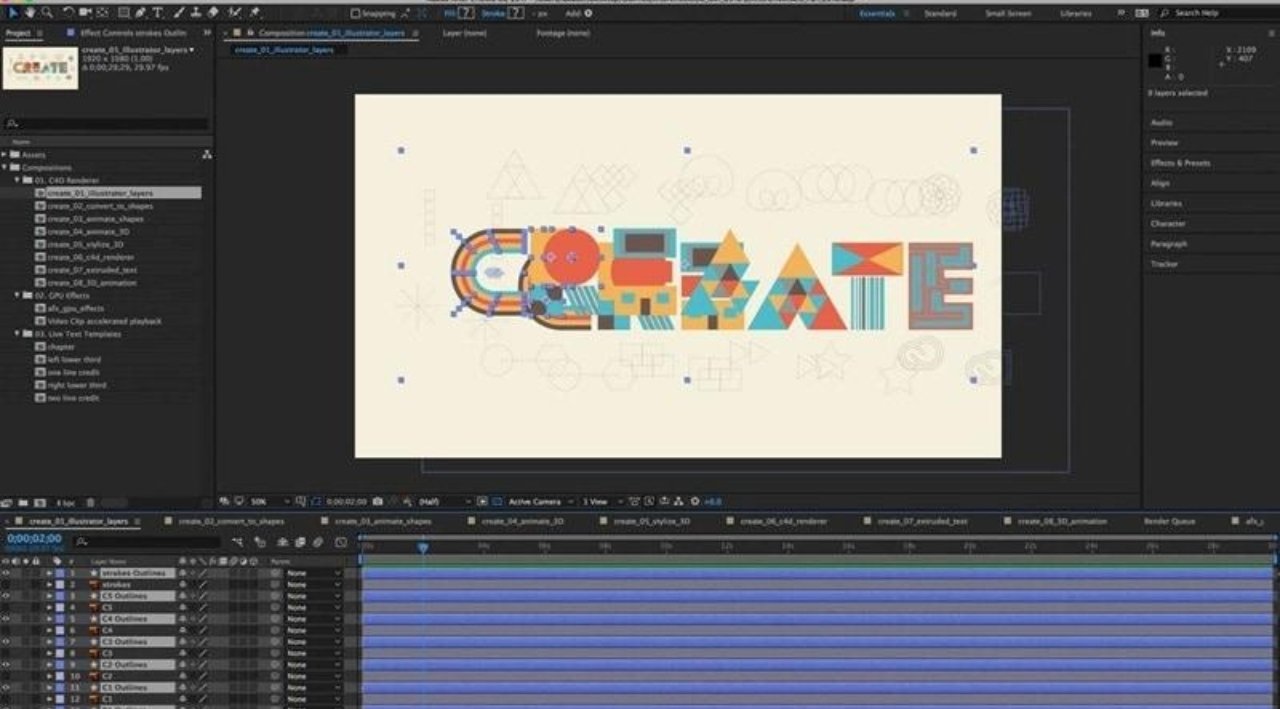
After Effects also includes powerful built-in text animators that allow advanced control over characters, words, and lines individually. To access these features, open the text layer options and click Animate. Here you can animate properties such as tracking, opacity, position, scale, rotation, blur, and skew. One popular beginner effect is the typewriter animation where letters appear one by one, similar to movie subtitles or cinematic intros. Another popular style is text tracking animation where letters spread apart and then come together smoothly. These animations are commonly used in trailers and modern intro sequences.
Motion blur is another extremely important feature in professional animation. Without motion blur, fast-moving text can look robotic and unrealistic. Motion blur creates realistic blur during movement, making animations feel smoother and more cinematic. To enable motion blur in After Effects, activate the Motion Blur switch for the text layer and also enable global motion blur from the timeline toolbar. Once enabled, movement instantly looks more natural. Professional editors almost always use motion blur because it adds cinematic quality even to simple animations.
🎨 Motion Blur & Cinematic Titles
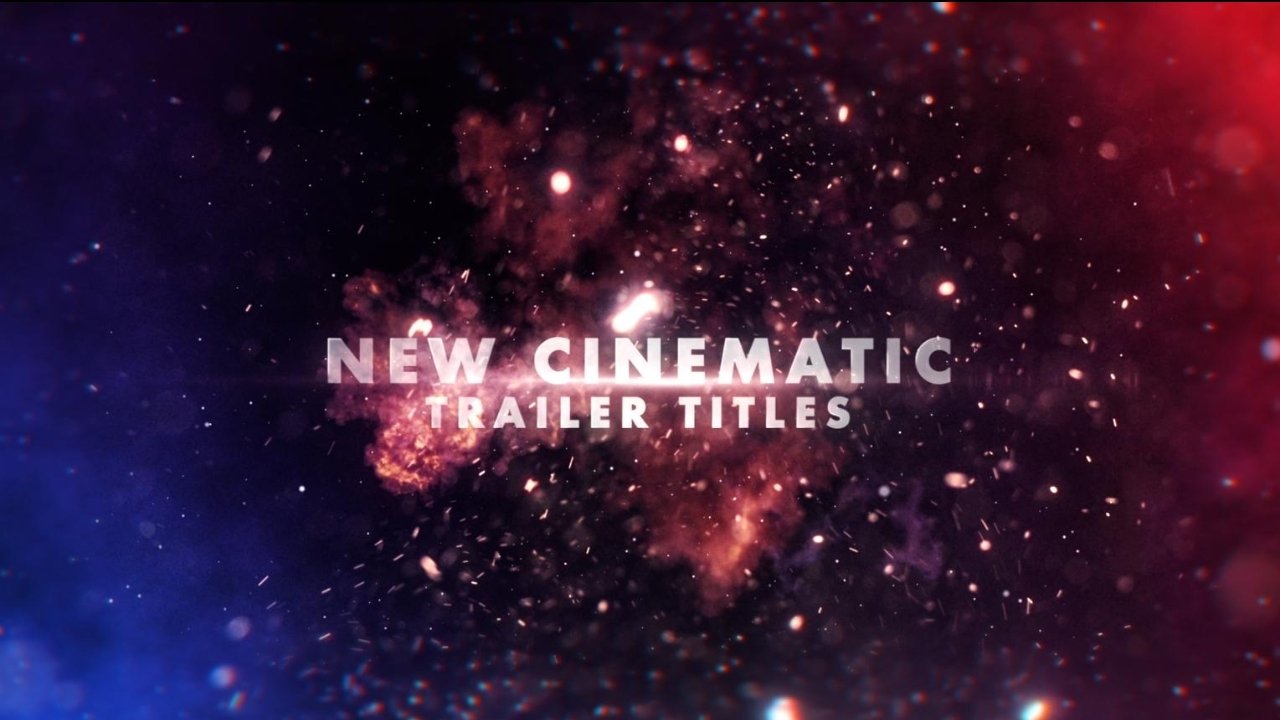
Another useful technique for beginners is using glow effects and shadows. Adding subtle glow can help titles stand out from dark backgrounds, while shadows improve text readability. However, these effects should be used carefully because too much glow or shadow can make text difficult to read. Professional title design focuses on balance and clarity instead of excessive effects. Color selection is equally important. White, yellow, purple, and cyan are commonly used in cinematic editing because they provide strong contrast and look visually attractive on screen.
Timing also plays a major role in text animation. Good animation timing makes titles feel smooth and professional, while poor timing can make videos feel awkward or rushed. Beginners should preview animations multiple times and adjust keyframe positions carefully. Using Easy Ease helps smooth out movement and removes robotic motion. Many editors also sync text animation with music beats because it creates stronger visual impact and improves viewer engagement. Beat-synced animations are very common in reels, gaming edits, montages, and cinematic trailers.
🔥 Professional Title Workflow
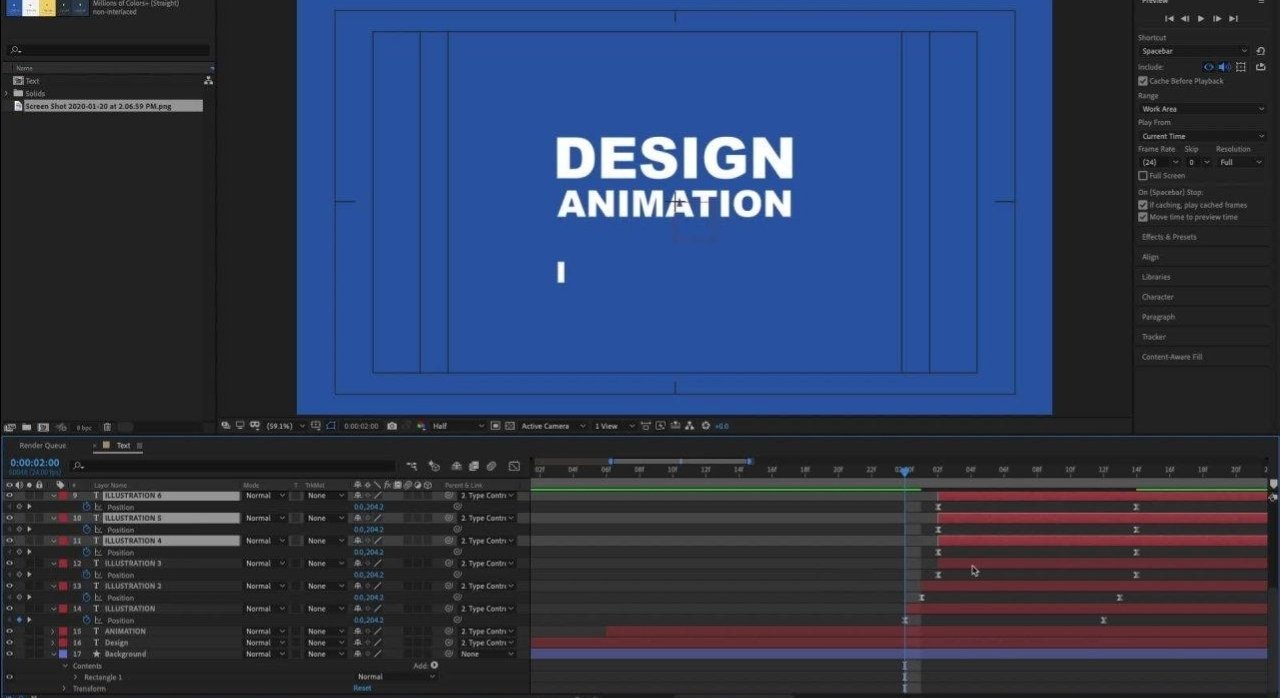
After Effects also supports animation presets that allow beginners to create professional-looking animations quickly. These presets can be applied directly to text layers and customized later. While presets are useful for learning, understanding manual animation is still important because it gives more creative control and helps editors develop their own style. Beginners should practice simple animations daily instead of trying complicated effects immediately. Learning smooth movement, proper timing, typography, and motion blur is far more valuable than using random flashy effects.
Another important tip is maintaining project organization. Name text layers properly, use color labels, and organize compositions carefully to improve workflow efficiency. Large projects can quickly become confusing if layers are not organized correctly. Professional editors depend heavily on clean timelines and structured workflows to save time during editing.
Text animation, motion blur, and cinematic title effects are some of the most powerful tools inside Adobe After Effects. These skills are used in almost every professional editing field including YouTube videos, social media reels, advertisements, gaming montages, music videos, cinematic intros, and promotional content. By understanding typography, keyframes, Easy Ease, motion blur, timing, and text animators, beginners can start creating clean and professional motion graphics that look visually impressive and cinematic. With regular practice and creativity, even simple text animations can become powerful visual elements that make videos stand out professionally on every platform.