
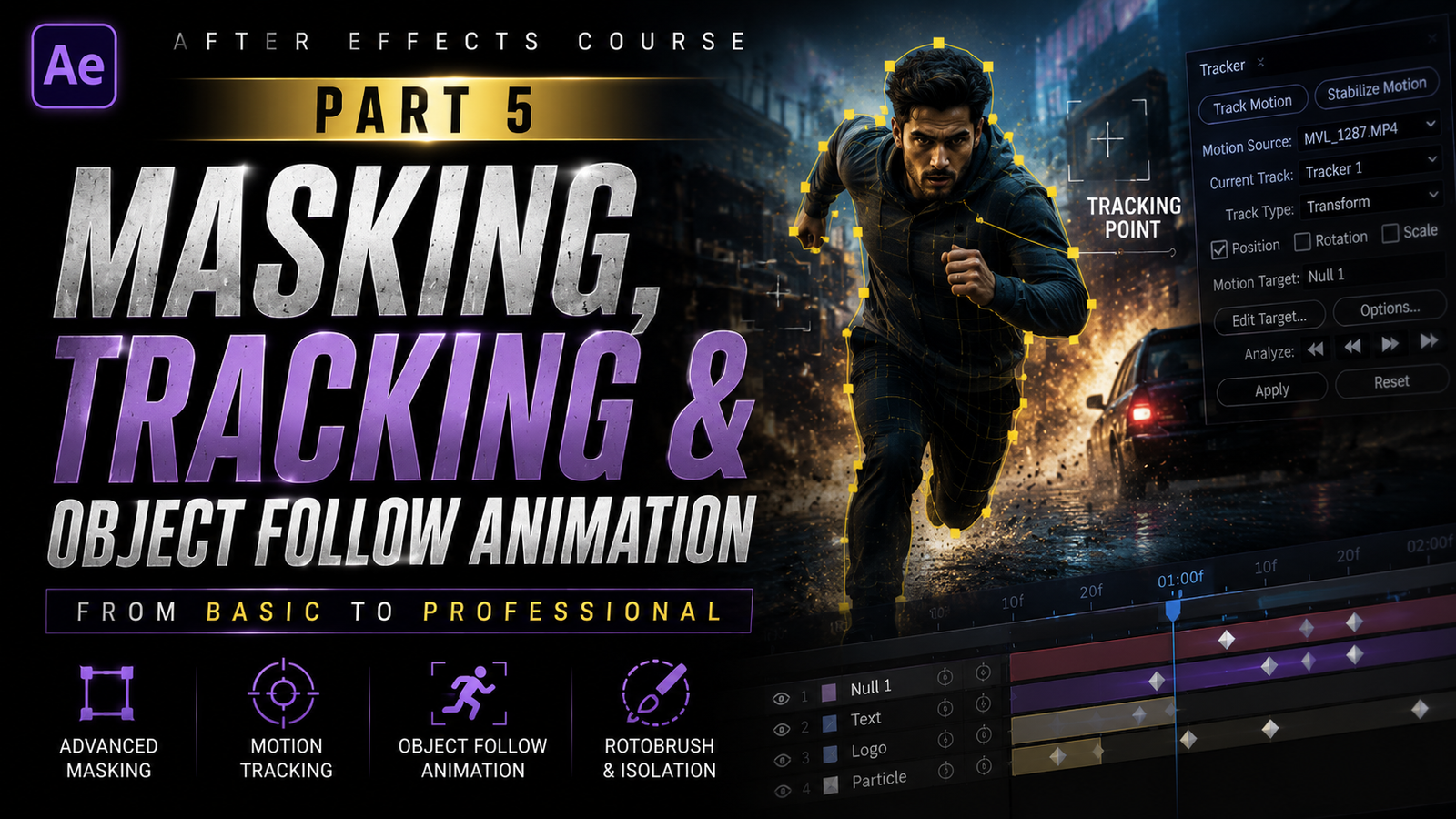
Adobe After Effects is great for making animations and visual effects. One of the exciting things beginners want to learn is masking and object tracking. These tools are used in movies, YouTube videos, gaming montages, ads and social media videos. In the parts of this course we learned about compositions, layers, timelines, keyframes, Easy Ease, text animation, motion blur and title effects. Now in Part 5 we will focus on masking, tracking and object follow animation. These features help creators make videos look more professional and cinematic.
🎬 What is Masking in After Effects?
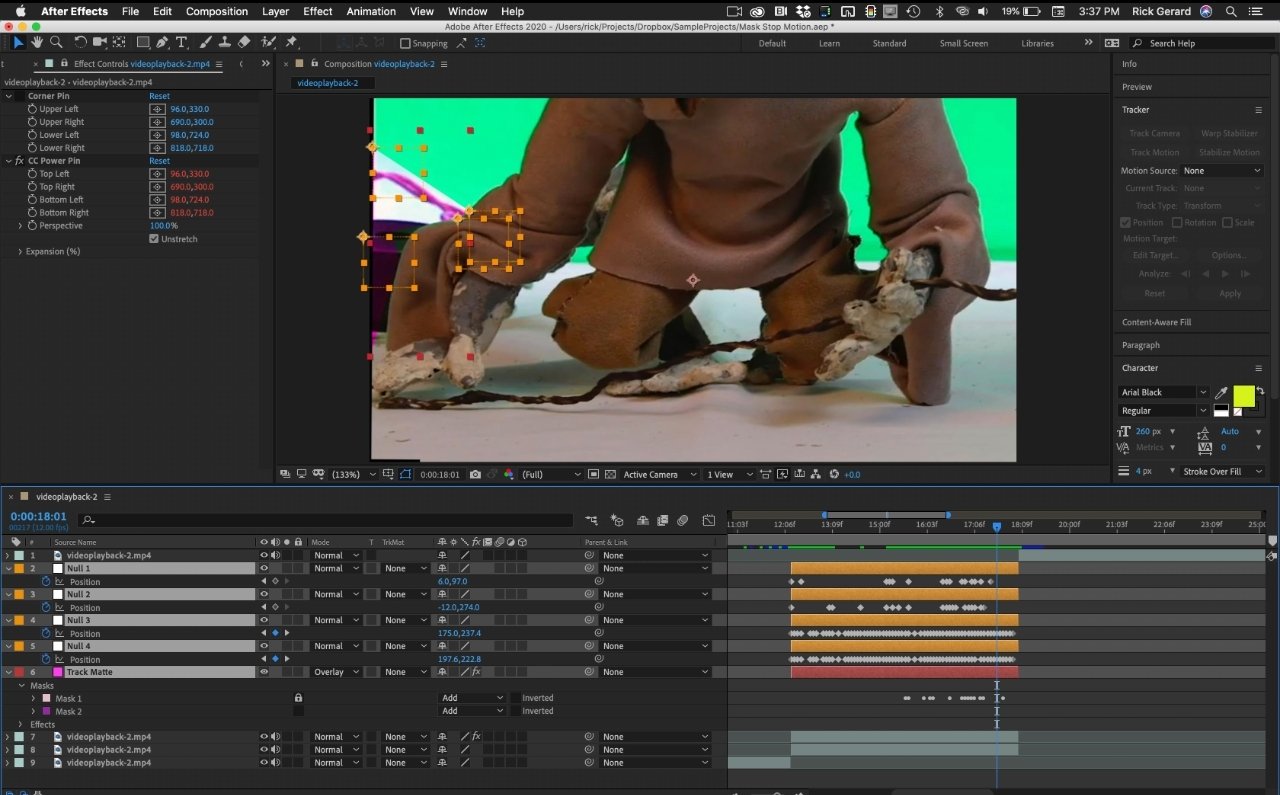
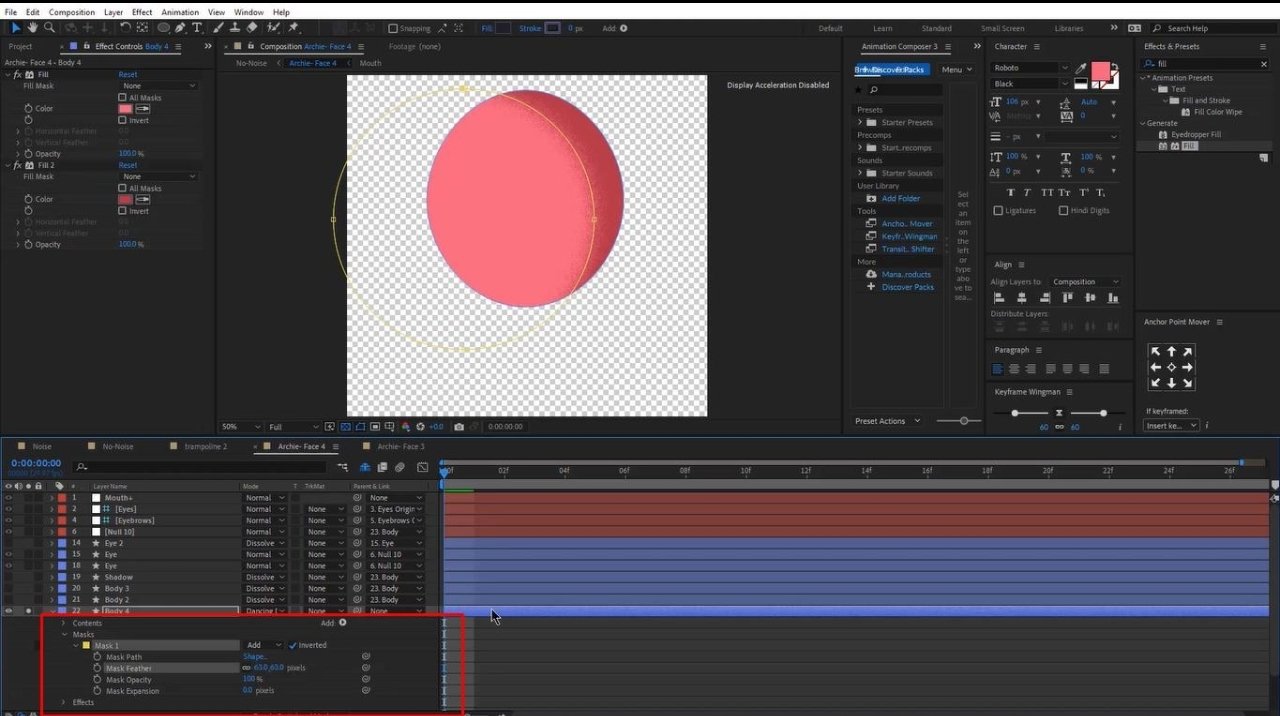
Masking in After Effects means selecting an area of a video or image using shapes. Masks help editors hide, reveal, blur or apply effects to selected parts of footage. After Effects has masking tools like Rectangle Mask Tool, Ellipse Mask Tool and Pen Tool. Beginners usually start with rectangle and ellipse masks because they are easy and fast to use. For advanced and custom shapes the Pen Tool is commonly used. To create a mask select a layer. Use one of the mask tools to draw around the area you want to edit. Once the mask is created, After Effects generates mask properties including Mask Path, Mask Feather, Mask Opacity and Mask Expansion. Understanding these properties is important because they control how smooth and realistic the mask looks.
Mask Feather softens mask edges. Creates smoother blending between masked and non-masked areas. Without feathering masks may look sharp and unnatural. Mask Expansion. Decreases mask size, while Mask Opacity controls visibility. Beginners often make the mistake of using masks with edges, which can make effects look unrealistic. Even small feather adjustments can dramatically improve visual quality.
⚡ Mask Path Animation & Motion
One of the common uses of masking is face blur. This effect is frequently used in interviews, cinematic edits and social media content. To create a face blur effect apply an effect to the video layer create a mask around the face and then invert the mask if needed. If the subject moves the mask also needs to move with the face. This is where tracking becomes extremely useful. Of manually adjusting mask positions frame by frame After Effects can automatically follow movement using tracking tools.
Tracking is a feature in After Effects that allows effects, text or graphics to follow movement automatically. Motion tracking analyzes movement inside footage and records the position of selected points. This data can then be attached to text, images, logos or other layers. For example if you want text to follow a moving car or player in a sports edit motion tracking helps create that effect easily.
🎨 Motion Tracking Explained
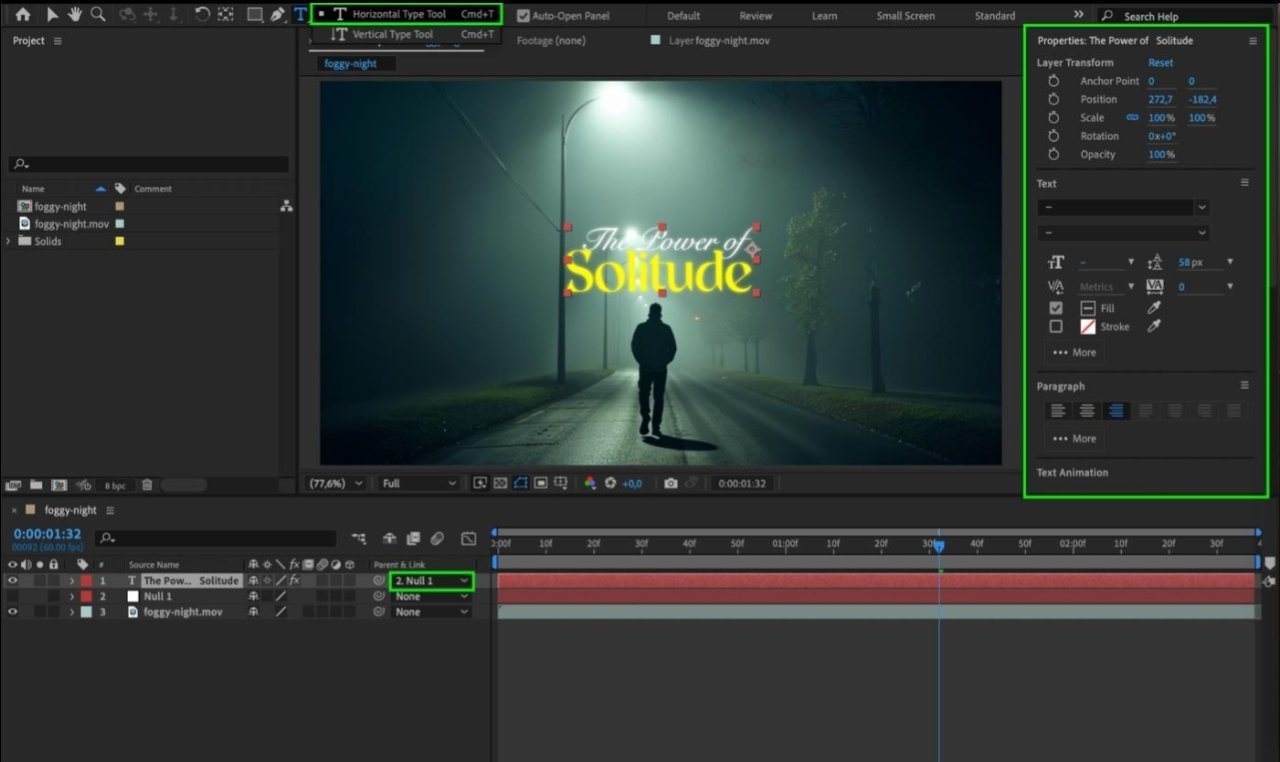
To start tracking select the layer. Open the Tracker Panel. Choose “Track Motion”. Place the tracking points over an area with strong contrast and clear movement. After Effects analyzes the footage frame by frame. Follows the selected object. Once tracking is complete the data can be applied to a Null Object. A Null Object is a helper layer used for animation and tracking workflows. By parenting text or graphics to the Null Object those elements automatically follow tracked movement.
Another popular feature related to masking is rotoscoping. Rotoscoping means separating a subject from the background. This technique is commonly used for visual effects, background replacement and green screen-style editing. After Effects provides the Rotobrush Tool which simplifies this process significantly. Beginners can select the subject using the Rotobrush and After Effects automatically attempts to separate the subject from the background.
🔥 Rotoscoping & Object Isolation
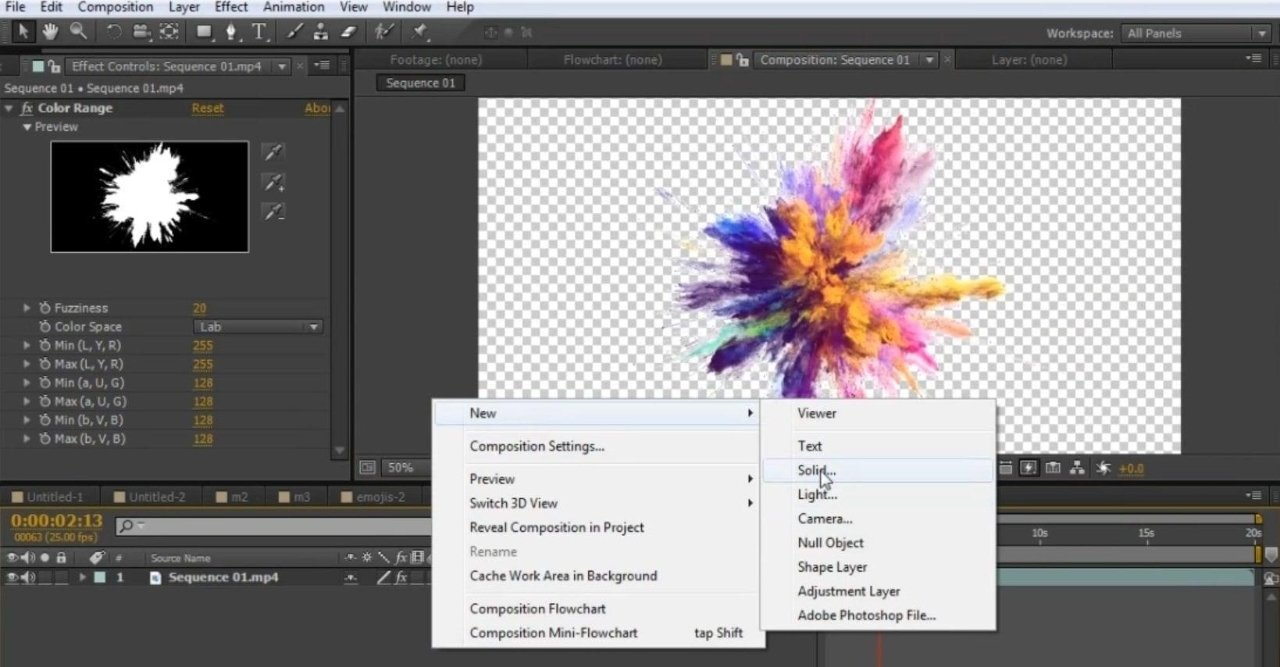
Another cinematic use of masks is creating transitions. These transitions use masks to reveal footage during movement. For example a mask can follow an object passing across the screen. Reveal the next clip underneath creating a seamless transition. These types of effects are extremely popular in travel videos, reels, YouTube intros and cinematic montages because they look dynamic and professional.
Tracking can also be combined with effects, for workflows. For example if you want lightning effects glow effects or particles to follow movement tracking helps attach those effects naturally to objects or characters. Even simple glow effects become more cinematic when properly tracked to movement.
Project organization is super important when working with masks and tracking. This is because multiple layers, null objects and effects can make timelines really confusing. To stay organized it’s an idea to name layers properly use color labels and put compositions into folders. This helps keep a workflow. Many beginners don’t focus on organization at later struggle with big projects. Professional editors save a lot of time by keeping projects structured and clean.
🎬 Professional Workflow Tips
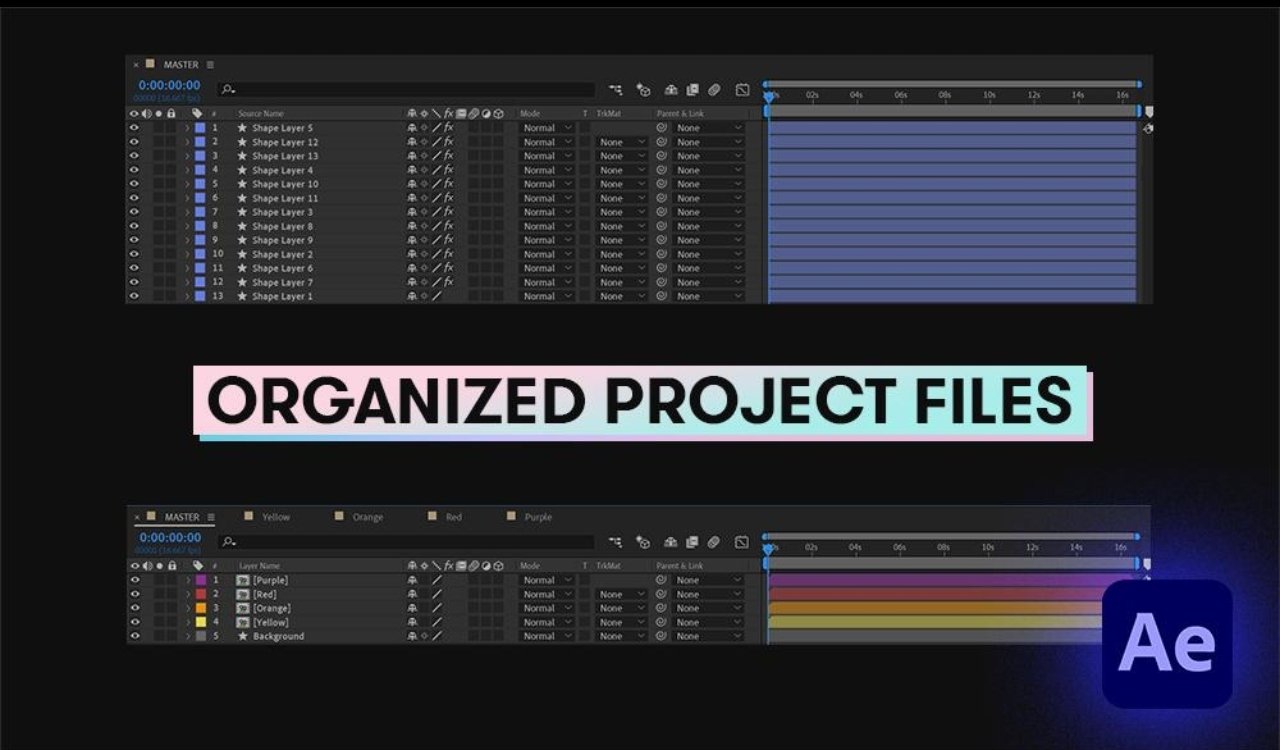
Another important tip for beginners is to practice on footage first. Footage that is shaky or has a speed can make tracking difficult and frustrating. Start with clips that have movement and good lighting. Once you understand tracking basics you can move on to advanced footage and cinematic scenes. Tracking and masking take time and patience as they often require adjustments and experimentation. Even professional editors spend time refining masks and tracking data for results. Also performance optimization is important because tracking and masking use a lot of system resources.
Beginners with low-end PCs should reduce preview resolution, clear cache regularly and close unnecessary applications during editing. Using proxy workflows can also improve playback performance for projects. Masking, tracking and object follow animation are professional-looking features in Adobe After Effects. These tools are used in films, advertisements, reels, gaming edits, YouTube videos, motion graphics and cinematic transitions.
Learning these techniques helps beginners create advanced and visually impressive projects. By understanding masks feathering, tracking points Null Objects, rotoscoping and object-follow workflows editors can unlock possibilities. Consistent practice, patience and experimentation with projects will help beginners master these essential After Effects skills. This builds confidence, in creating quality professional visual effects content for every platform.