
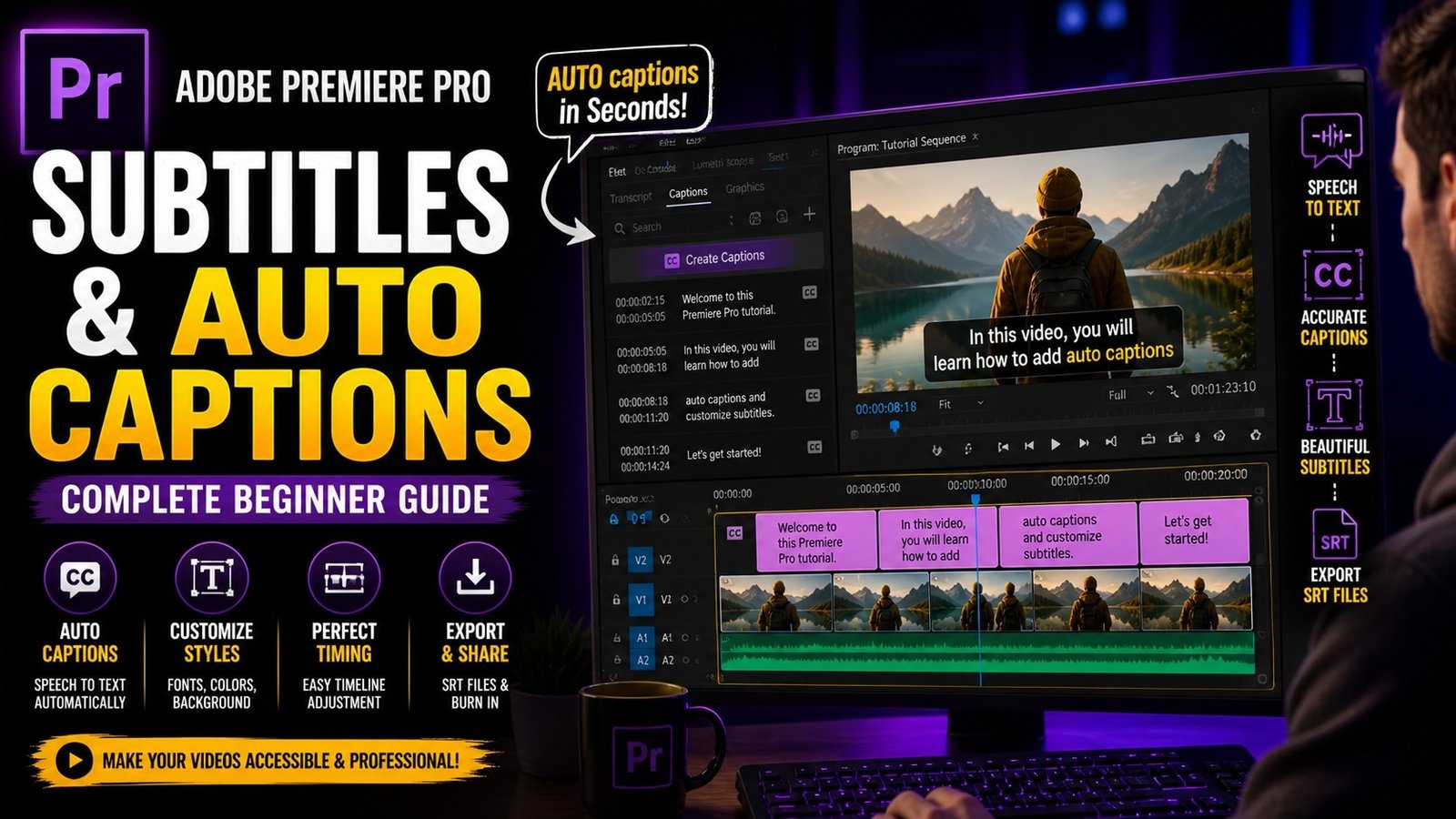
Subtitles and auto captions are very important features in Adobe Premiere Pro that help make your videos more accessible, engaging, and professional, especially for platforms like YouTube, Instagram, and other social media where many viewers watch videos without sound. Adding subtitles not only improves user experience but also increases watch time and audience retention, which is very important for content creators. Premiere Pro provides an easy way to generate captions automatically using its speech-to-text feature, which saves a lot of time compared to typing subtitles manually.
To start, you need to import your video into the timeline and make sure your audio is clear and properly synced. Then go to the Text panel and select the Captions section. Here, you will find an option called “Create Transcription.” Once you click it, Premiere Pro analyzes your audio and converts speech into text automatically. This process may take a few minutes depending on the length of your video, but it is very accurate in most cases. After the transcription is complete, you can review the text and correct any mistakes if needed. The next step is to create captions from the transcription. Premiere Pro allows you to generate captions in different formats, and you can adjust settings like caption length and timing. Once captions are created, they appear on the timeline as a separate track, and you can edit them just like any other element
🎬 Auto Caption Generation Panel
After generating captions, you can customize their appearance to match your video style. In the Essential Graphics panel, you can change font, size, color, alignment, and background. Adding a background or stroke to your text improves readability, especially when your video has bright or complex visuals. You can also adjust the position of captions on the screen, such as placing them at the bottom or center depending on your design. Consistency is very important when styling captions, so try to use the same font and colors throughout your video. Another useful feature is adjusting timing. Sometimes captions may appear too early or too late, so you can drag them in the timeline to match the audio perfectly. Proper timing ensures that viewers can easily follow along with your content.
🔤 Caption Styling & Design
Another important aspect of captions is animation. While basic captions are static, you can make them more engaging by adding simple animations using keyframes. For example, you can create fade-in and fade-out effects or slight motion for captions. This makes your video look more dynamic and modern. However, beginners should avoid overusing animations and keep captions simple and easy to read. Subtitles should support your content, not distract from it. Premiere Pro also allows you to export captions as separate files, which is useful if you want to upload them to platforms like YouTube. You can choose formats like SRT or embed captions directly into your video during export.
⚡ Caption Timing & Animation
Using subtitles also improves SEO and discoverability because search engines can understand your content better when captions are available. This can help your videos reach a wider audience. Additionally, subtitles are very useful for viewers who speak different languages or have hearing difficulties, making your content more inclusive. Another tip is to keep captions short and clear. Avoid long sentences and break them into smaller parts for better readability. Use simple language and ensure proper punctuation to make captions easy to understand.
🎨 Final Caption Output
Subtitles and auto captions are essential tools for modern video editing, and learning how to use them effectively can greatly improve your content quality. Premiere Pro makes this process simple and efficient, allowing even beginners to create professional captions easily. With regular practice, you will be able to generate, edit, and style captions quickly, improving both your workflow and video performance. Focus on clarity, timing, and consistency to create captions that enhance your videos and keep viewers engaged.