
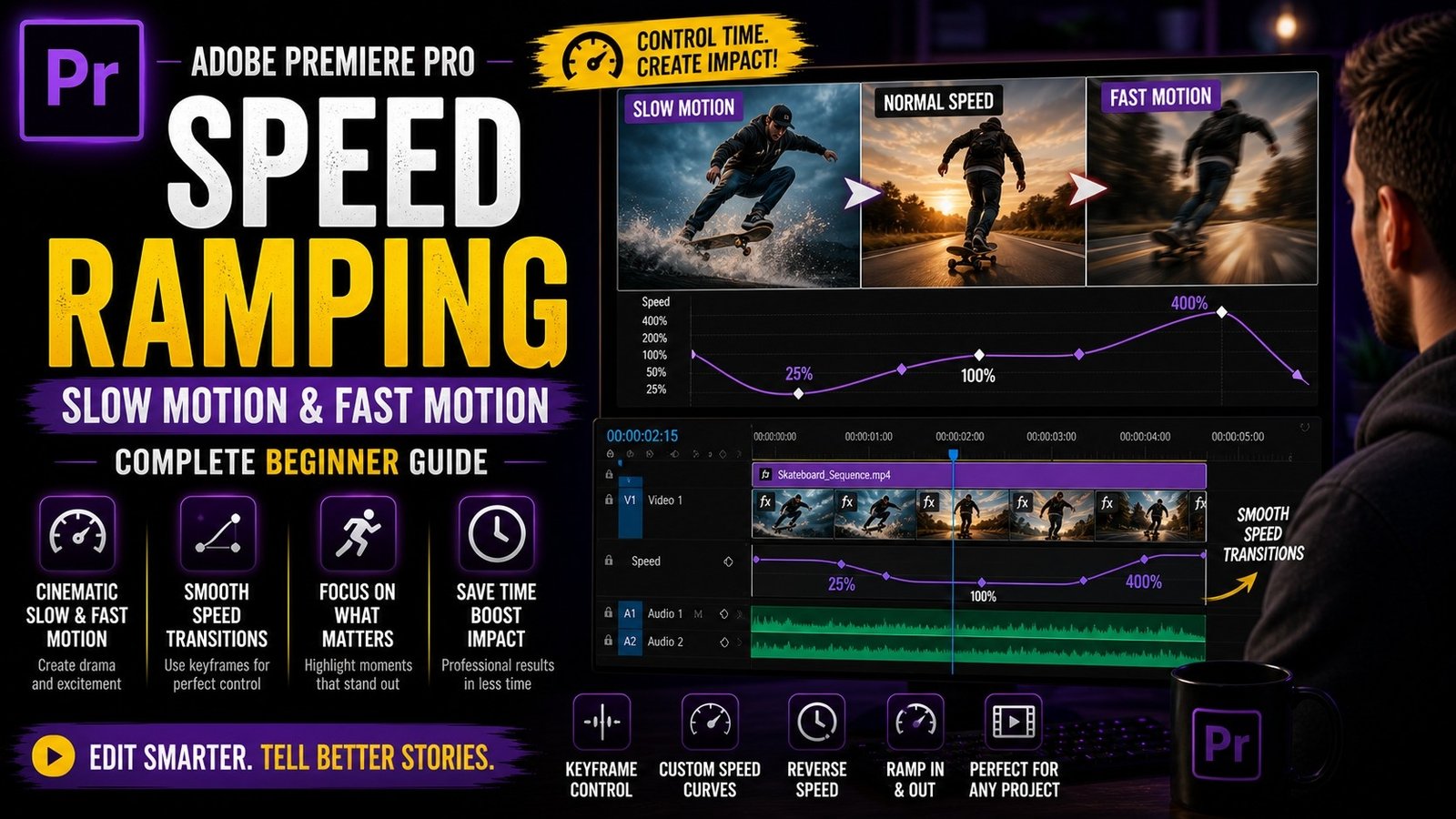
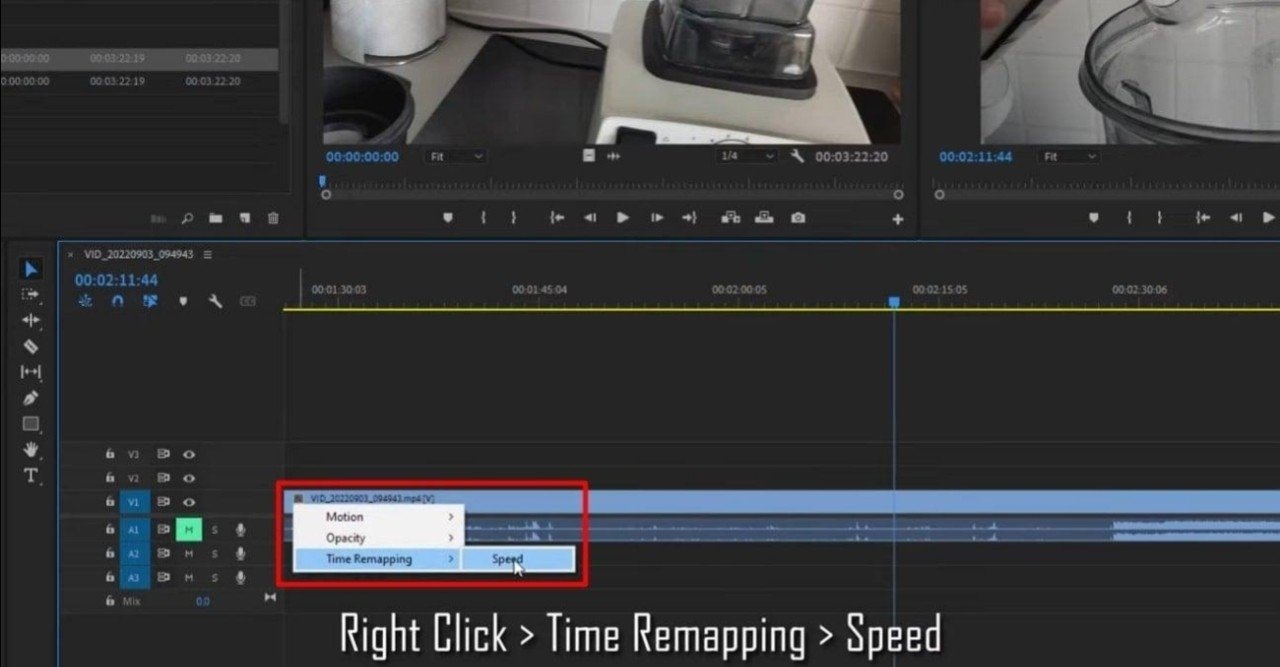
Speed ramping is one of the most popular and powerful editing techniques in Adobe Premiere Pro that helps you create smooth slow-motion and fast-motion effects within the same clip, making your videos look more dynamic and professional even if you are a beginner. Many creators use speed ramping in cinematic videos, travel vlogs, reels, and YouTube content because it adds energy and visual interest without requiring complex editing skills. To start with speed ramping, you first need to import your video clip into Premiere Pro and place it on the timeline. Once your clip is ready, right-click on it and select “Show Clip Keyframes” and then choose “Time Remapping” followed by “Speed.” This will allow you to control the speed of your clip directly in the timeline.
You will see a horizontal line across your clip, which represents the speed. By default, it will be at 100%, meaning normal speed. To create speed ramping, you need to add keyframes by holding the Ctrl key and clicking on the line where you want to change the speed. These keyframes divide your clip into different sections where you can adjust speed individually. After adding keyframes, you can drag the line up to increase speed or drag it down to create slow motion
For example, you can keep the beginning of the clip at normal speed, then increase speed in the middle for a fast transition, and finally slow it down again for a dramatic effect. This combination creates a smooth and engaging flow in your video. One important thing to understand is that smooth transitions between speeds are what make speed ramping look professional. To achieve this, you need to drag the keyframe handles outward, which creates a gradual transition between speeds instead of a sudden change. This small adjustment makes a big difference in the final result. Beginners often make the mistake of creating sharp speed changes, which can look unnatural, so always try to smooth your transitions.
🎬 Speed Ramping Timeline View
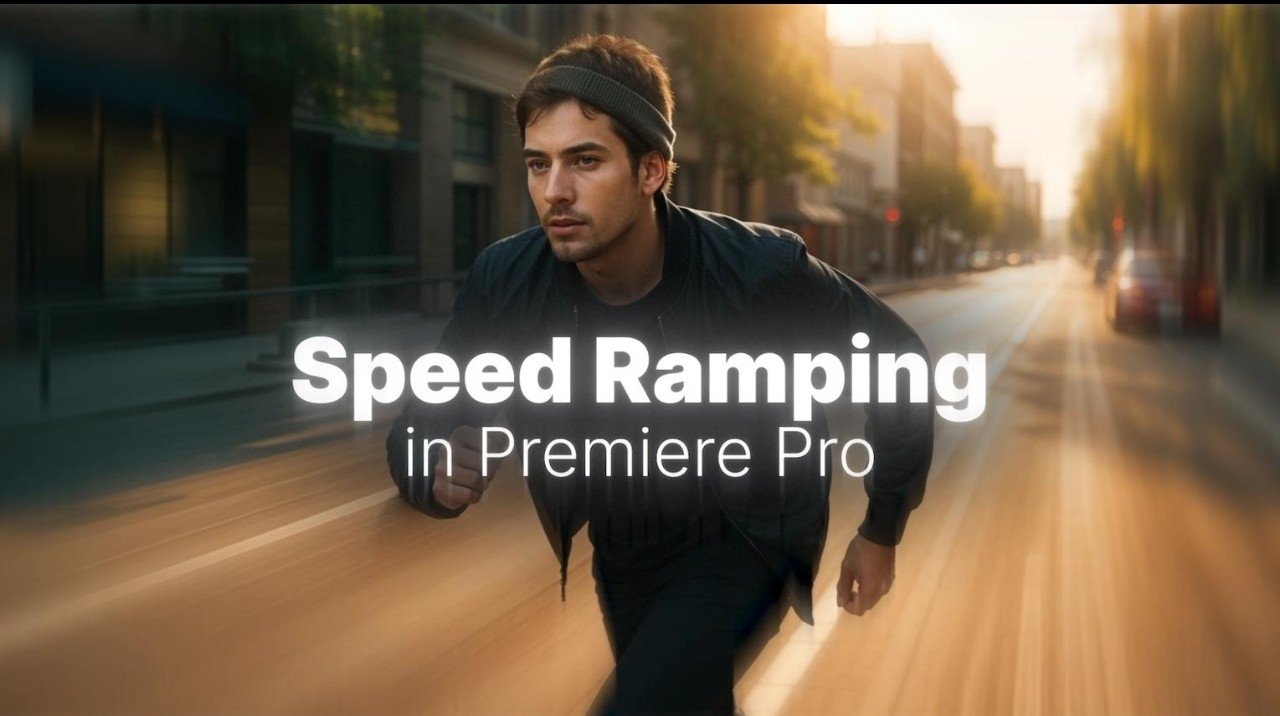
Another important aspect of speed ramping is using the right footage. If you want smooth slow motion, your video should be recorded at a higher frame rate like 60fps or 120fps. This allows you to slow down the footage without losing quality. If you try to slow down a 30fps clip too much, it may look choppy. Premiere Pro also provides an option called Optical Flow, which helps create smoother slow motion by generating extra frames. You can enable this option by right-clicking your clip, selecting Speed/Duration, and choosing Optical Flow as the time interpolation method.
This improves the quality of slow-motion clips, especially when you don’t have high frame rate footage. In addition to speed adjustments, you can enhance your speed ramping effect by adding motion blur. Fast motion clips often look more realistic when motion blur is applied because it mimics how our eyes see movement in real life. While Premiere Pro does not have built-in advanced motion blur for speed ramping, you can use third-party plugins or adjust shutter effects while shooting.
⚡ Before & After Speed Effect
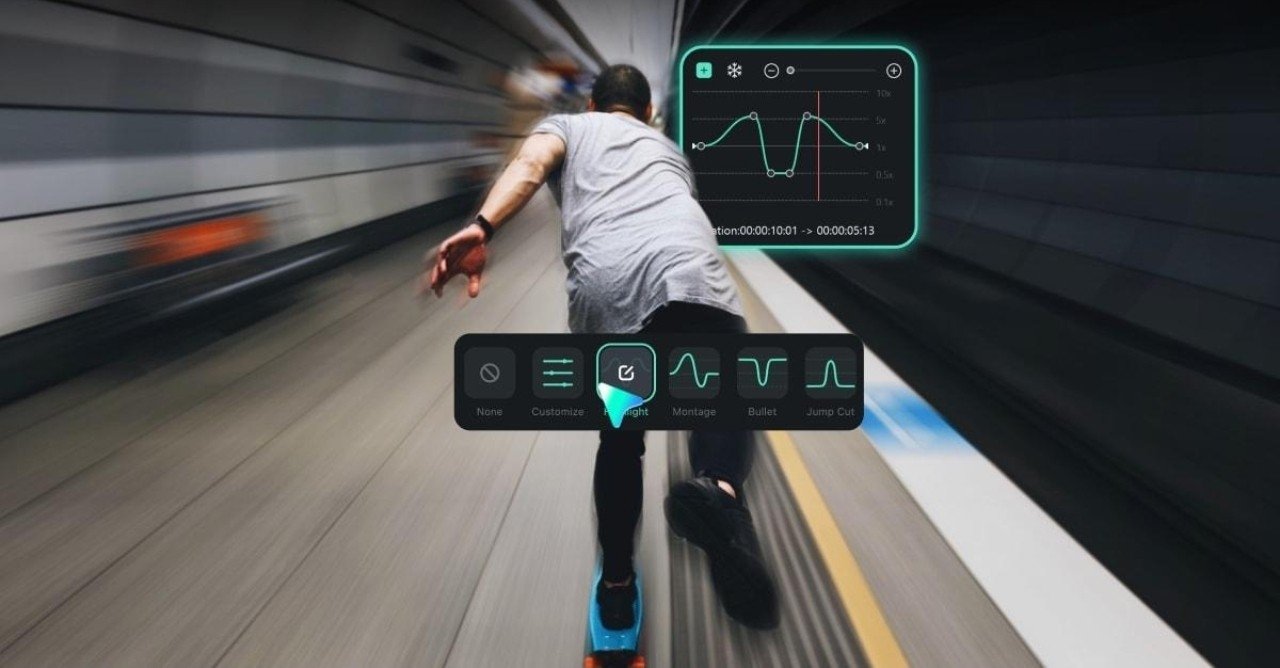
Another useful tip is syncing speed ramping with music beats. This makes your edits more engaging and professional. For example, you can increase speed during a beat drop and slow it down during a calm section. This creates a strong connection between visuals and audio, making your video more enjoyable to watch. You can use markers in Premiere Pro to identify beat points and align your speed changes accordingly. Also, combining speed ramping with zoom effects or transitions can make your video even more dynamic. For example, you can add a zoom-in effect during slow motion or a quick zoom-out during fast motion. These small enhancements improve the overall quality of your edit
🎨 Speed/Duration Settings
Practicing speed ramping regularly will help you understand how timing and motion work together. Start with simple edits and gradually experiment with different styles. Even if your system is not very powerful, you can still learn this technique using basic settings. Premiere Pro provides all the tools you need to create smooth and professional speed ramping effects, and mastering this skill can significantly improve your video editing quality. Whether you are creating content for YouTube, Instagram, or personal projects, speed ramping can make your videos stand out and look more cinematic. Over time, you will develop your own style and learn how to use speed creatively to tell better visual stories.