
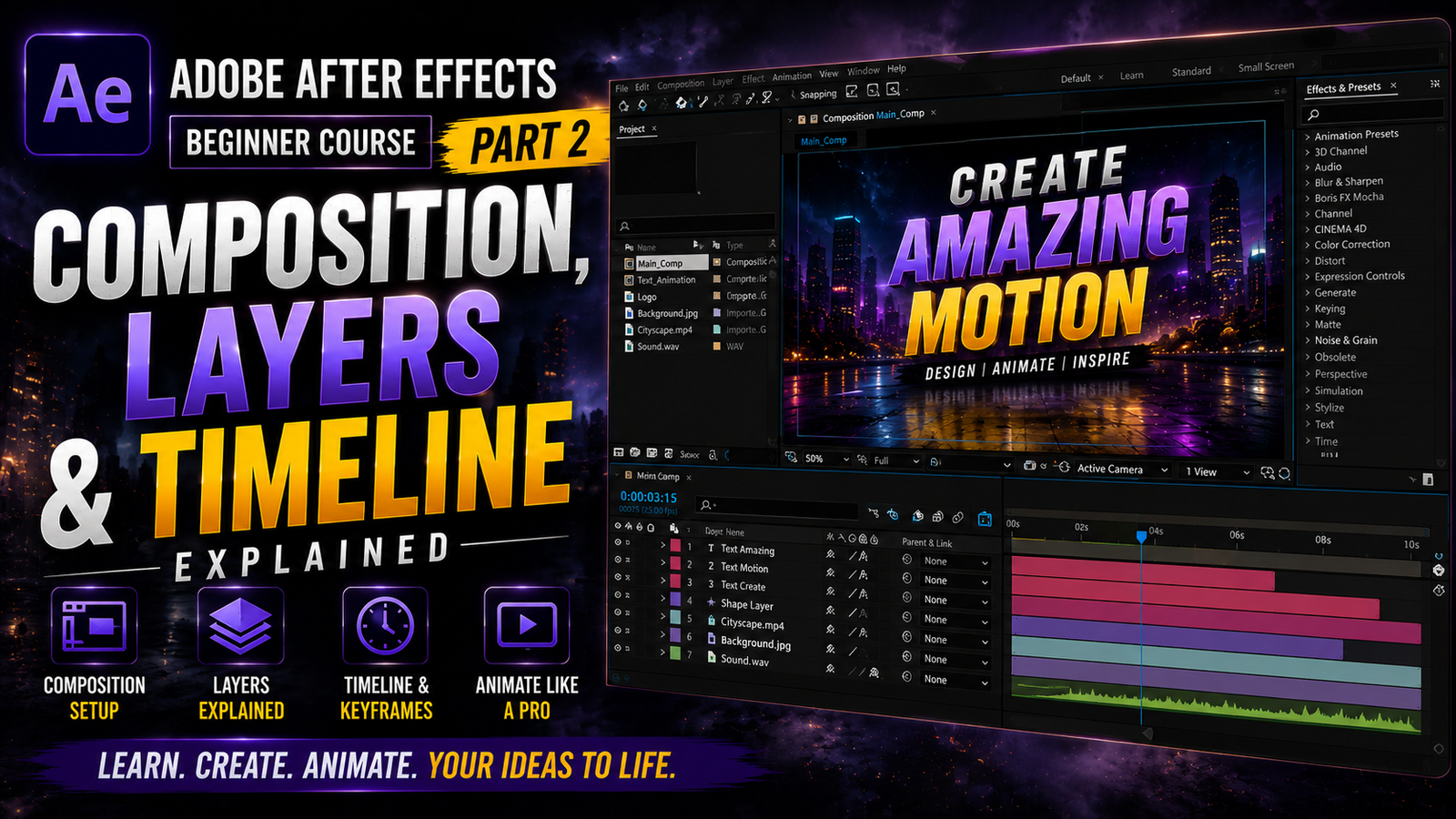
Adobe After Effects is one of the most powerful software applications used for motion graphics, visual effects, cinematic animations, logo reveals, YouTube intros, and professional video compositing. In Part 1, beginners usually learn the basic interface, workspace, panels, and software settings, but in Part 2 the most important step is understanding compositions, layers, and the timeline because these features are the foundation of every animation and visual effect created inside After Effects. Without learning these tools properly, creating professional motion graphics becomes difficult. A composition, commonly called a “Comp,” is the main workspace where all animations and effects are created. You can think of a composition like a video project or editing canvas where all elements such as text, videos, images, shapes, and audio are placed together.
To create a new composition, go to Composition and select New Composition. After creating it, you need to choose settings like resolution, frame rate, duration, and background color. Beginners usually start with 1920×1080 resolution at 30fps because this is the standard format for YouTube and most social media videos. The duration controls how long your animation or video will last, and you can change it later if needed. Understanding composition settings is very important because wrong settings may create export or animation issues late
🎬 Composition Settings Explained
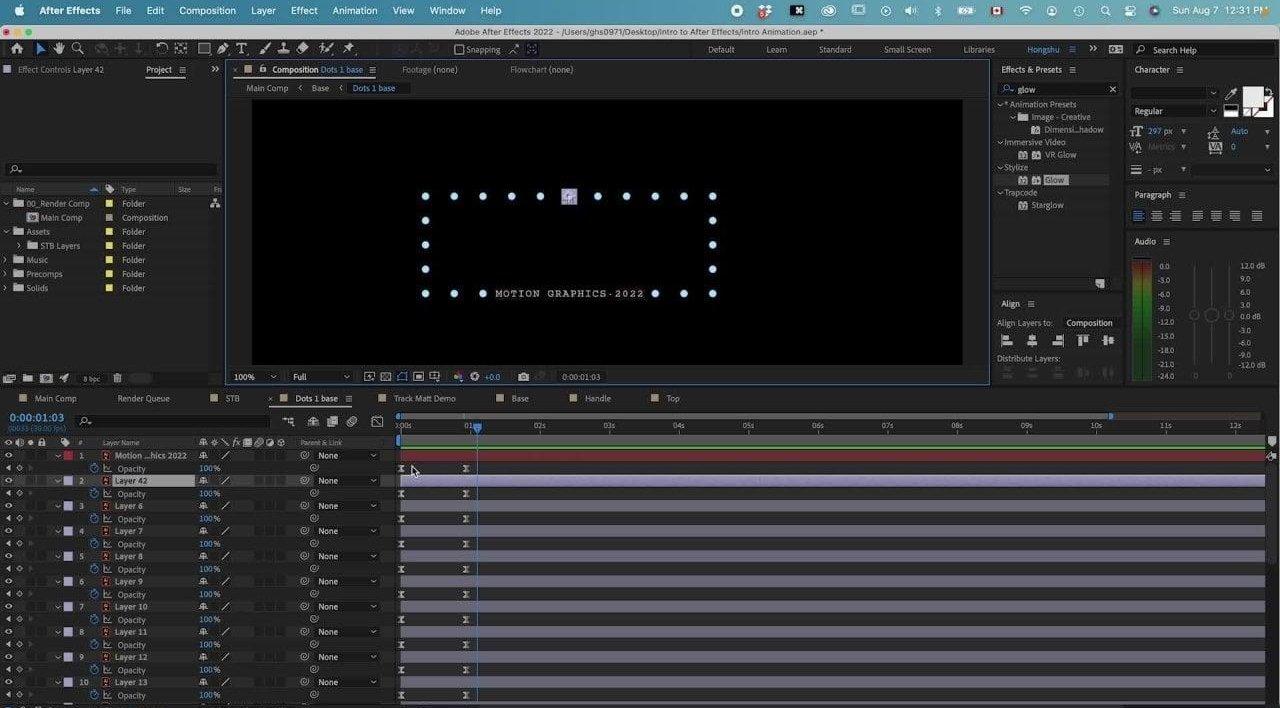
Once your composition is created, the next step is importing files into the Project Panel. The Project Panel is where all your media files such as videos, images, audio, logos, and graphics are stored before being used inside compositions. To import files, you can double-click inside the Project Panel or use the shortcut Ctrl+I. After importing media, simply drag the files into the composition timeline to begin editing or animating them. Every imported item becomes a layer inside the timeline. Layers are one of the most important concepts in After Effects because every object works independently on its own layer. Text, images, videos, shapes, and audio all appear as separate layers, and each layer can have its own effects, animations, blending modes, and transformations.
⚡ Project Panel & Layer Workflow
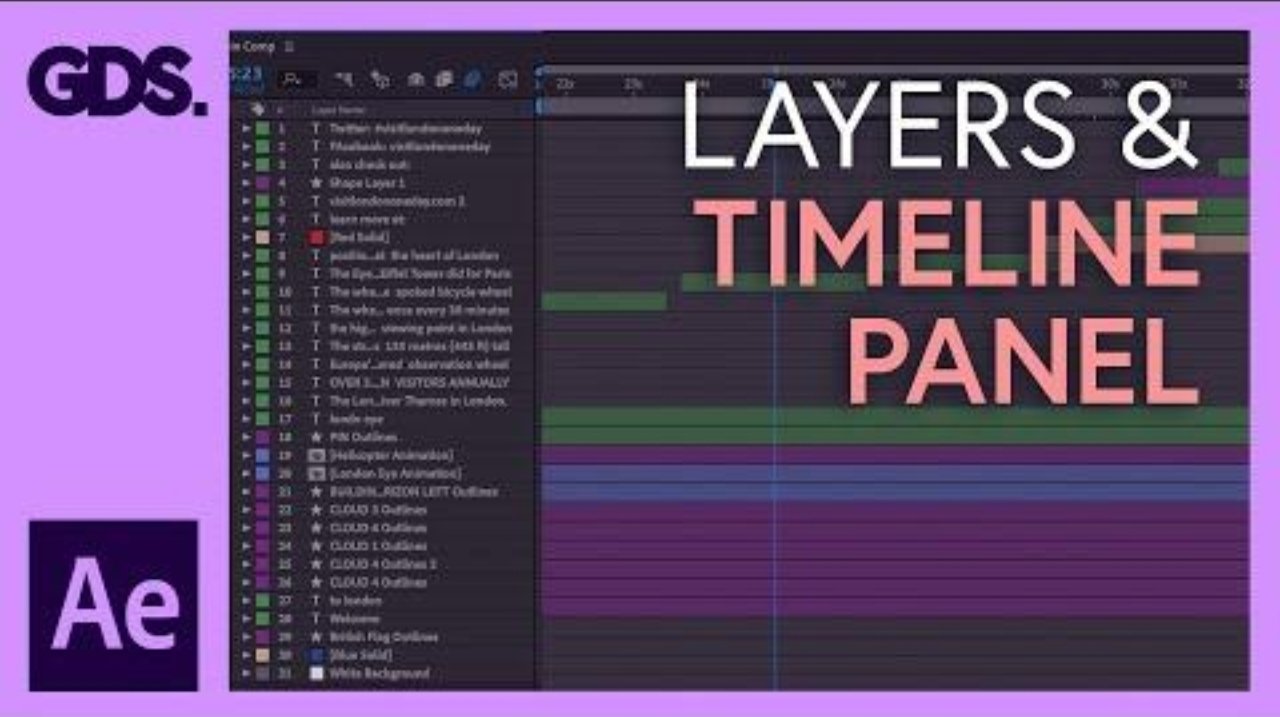
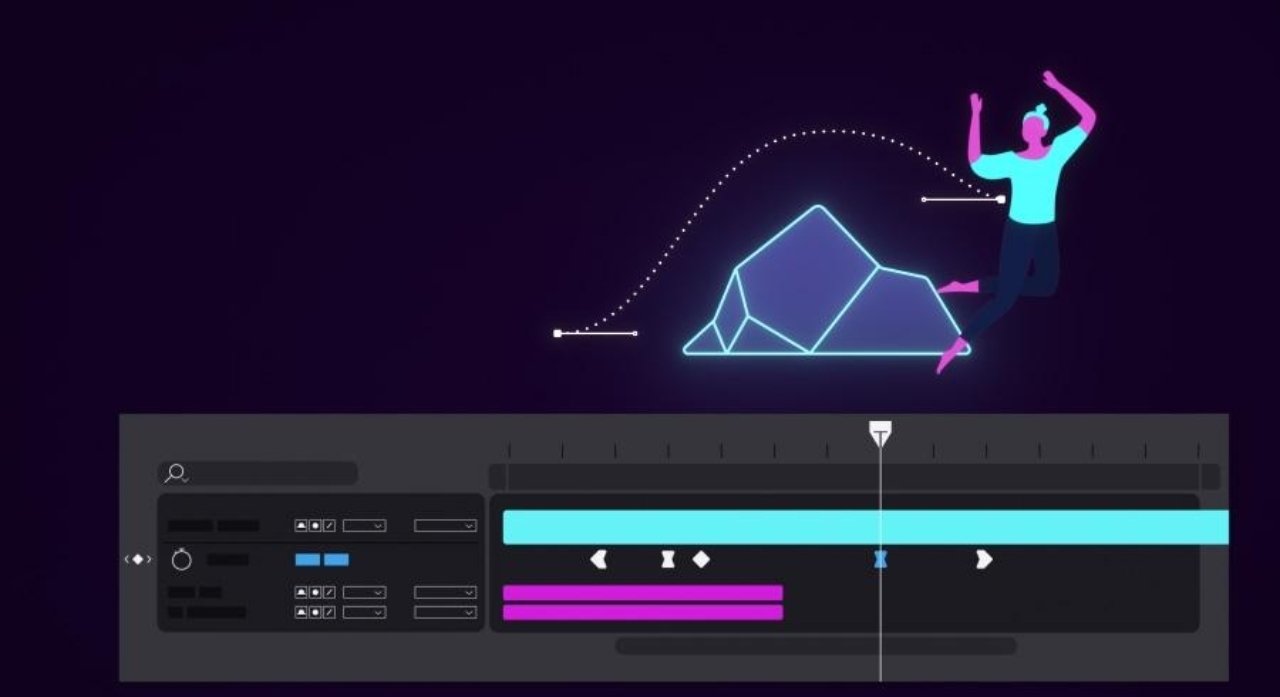
The timeline panel is where all animation work happens. This is the section where you control timing, movement, keyframes, effects, and layer arrangements. Beginners should first understand the most important layer properties which are Position, Scale, Rotation, Opacity, and Anchor Point. These properties are the foundation of animation inside After Effects. Position controls where an object appears on the screen, Scale changes the size, Rotation spins the object, Opacity controls transparency, and Anchor Point controls the center point used for transformations. To animate any property, you need to create keyframes. Keyframes tell After Effects where an object starts and where it ends during animation. For example, if you want text to move from left to right, create one keyframe at the beginning and another keyframe later with a different position. After Effects automatically creates smooth movement between the two points.
🎨 Timeline & Keyframe Basics
Another important concept beginners should learn is layer order. Layers placed at the top appear above layers placed below them. For example, if text is above a video layer, the text will appear visible over the video. Understanding layer order helps when creating intros, motion graphics, and visual effects. Beginners should also learn how to lock, hide, and solo layers because these features make project management easier, especially when working with complex animations. Locking prevents accidental changes, hiding removes temporary visibility, and solo mode allows you to preview only selected layers.
One of the biggest advantages of After Effects is its parenting system. Parenting allows one layer to follow another layer’s movement. For example, if you attach text to a moving object using parenting, the text automatically follows the object without manually animating both layers. This feature is extremely useful for motion graphics and logo animations. Another useful beginner feature is pre-composing. Pre-compose means grouping multiple layers into a separate composition, which helps organize projects and manage complex animations easily. Professional editors often use pre-compositions to keep timelines clean and improve workflow efficiency.
🔥 Layer Animation & Motion Graphics
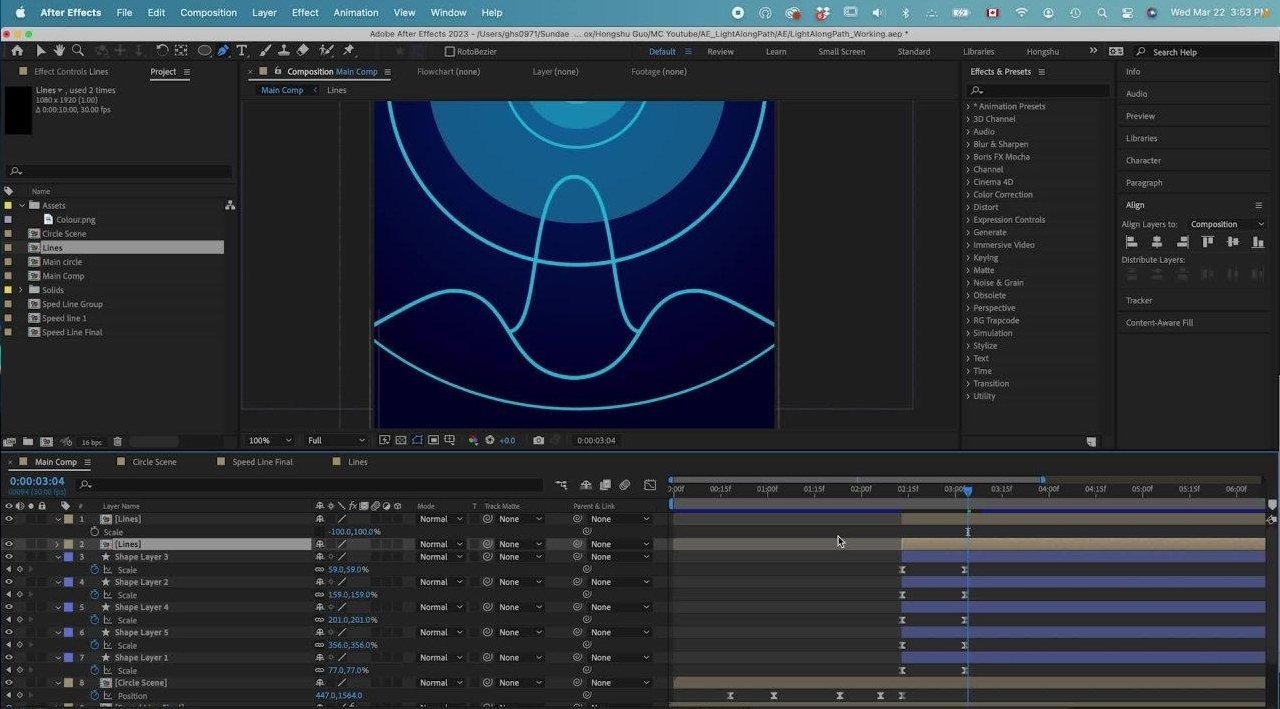
Effects and presets are another major part of After Effects. The Effects & Presets panel contains hundreds of visual effects, transitions, distortions, blurs, glows, and animation presets that can be applied to layers. Beginners often start with basic effects like Glow, Blur, Drop Shadow, and Motion Blur because these effects instantly improve visual quality. Motion blur is especially important because it creates realistic movement and cinematic smoothness during animation. Without motion blur, animations may look robotic or unnatural. You can enable motion blur directly in the timeline panel for smoother professional results.
Previewing animations correctly is also important. The Preview Panel allows you to play animations in real time and check smoothness, timing, and visual quality. Beginners sometimes create animations that move too fast or too slowly, so previewing regularly helps improve timing and overall quality. Using shortcuts can also improve editing speed significantly. Pressing P opens Position, S opens Scale, R opens Rotation, T opens Opacity, and U shows all animated keyframes on selected layers. Learning these shortcuts saves time and improves workflow efficiency.
Finally, organization is extremely important in After Effects projects. Create folders for videos, images, audio, compositions, and exports inside the Project Panel to keep projects clean and professional. Good organization helps avoid confusion and improves editing speed. Beginners should focus on understanding compositions, layers, and keyframes before moving to advanced topics like masking, tracking, 3D animation, and visual effects. These basic concepts are the foundation of every professional animation created in After Effects. By practicing regularly and understanding how compositions, layers, and timelines work together, beginners can quickly improve their animation skills and create professional cinematic motion graphics for YouTube, social media, short films, intros, and commercial projects.