
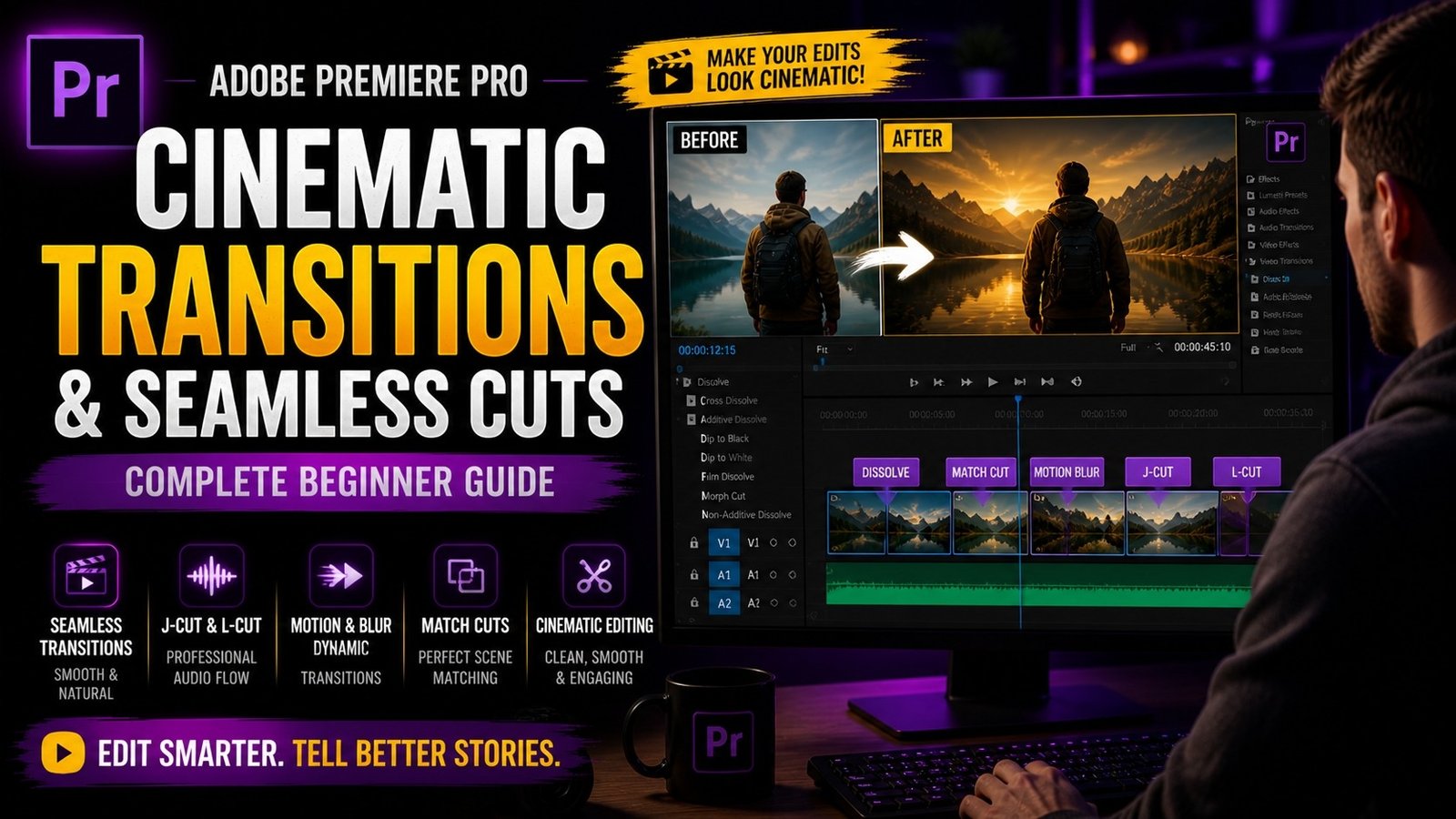
Cinematic transitions and seamless cuts are essential techniques in Adobe Premiere Pro that help you create smooth, professional-looking videos without overusing flashy effects, and mastering these techniques can significantly improve the quality of your edits even if you are a beginner. Many beginners rely on heavy transitions, but professional editors often use simple cuts combined with motion, timing, and creative techniques to make transitions look natural and engaging. The first concept to understand is the difference between a hard cut and a seamless transition. A hard cut is simply switching from one clip to another instantly,
while a seamless transition blends clips in a way that feels smooth and visually connected. To achieve this, you need to focus on matching movement, direction, and composition between clips. For example, if one clip ends with a camera moving to the right, the next clip should start with a similar motion to maintain continuity. This creates a natural flow that feels pleasing to the viewer. Another important technique is using match cuts, where two clips are connected based on similar shapes, positions, or actions. This helps create a smooth visual connection even when the scenes are different
🎬 Seamless Cut Example
One of the most commonly used cinematic transitions is the cut on action. This means you cut from one clip to another while the action is still happening, which hides the cut and makes it less noticeable. For example, if a person is opening a door, you can cut to another angle while the door is still moving. This creates a smooth transition and keeps the viewer engaged. Another popular technique is the J-cut and L-cut, which involve overlapping audio between clips. In a J-cut, the audio from the next clip starts before the video changes, while in an L-cut, the audio from the previous clip continues even after the video changes. These techniques are widely used in films and interviews to create smooth storytelling.
🔄 J-Cut & L-Cut Timeline
Another powerful method for creating cinematic transitions is using motion blur and zoom effects. By adding a slight zoom or motion blur at the end of one clip and matching it with the beginning of the next clip, you can create a dynamic transition that feels smooth and energetic. This technique is often used in travel videos and cinematic edits. You can achieve this by using keyframes in the Effect Controls panel to animate scale and position. Combining these with directional blur effects can enhance the transition further. Timing is very important here, so make sure your transitions match the rhythm of your video or music
⚡ Motion Transition Effect
Another useful technique is using masking for transitions. You can create a mask around an object and use it to reveal the next clip, creating a creative and unique transition. For example, you can mask a moving object like a person or car and use it as a transition element. This technique requires practice but can produce impressive results. Color grading also plays a role in seamless transitions. If two clips have very different colors, the transition may feel harsh. Using Lumetri Color to match colors between clips helps maintain consistency and smoothness.
🎨 Mask Transition Example
Sound design is another important factor in transitions. Adding whoosh sounds or subtle audio effects can make transitions feel more impactful and polished. Even simple cuts can feel cinematic when combined with the right sound effects. Always make sure your audio matches the energy of your visuals. Finally, practice is key to mastering cinematic transitions. Start with simple techniques like cut on action and match cuts, then gradually experiment with motion effects and masking.
Avoid overusing transitions, as too many effects can make your video look cluttered. Focus on smoothness, timing, and storytelling to create professional edits. Even with basic tools, you can achieve high-quality results by understanding these concepts. Over time, you will develop your own style and learn how to create seamless transitions that enhance your videos. Premiere Pro provides all the tools needed for cinematic editing, and mastering these techniques will help you create content that stands out and keeps viewers engaged.