
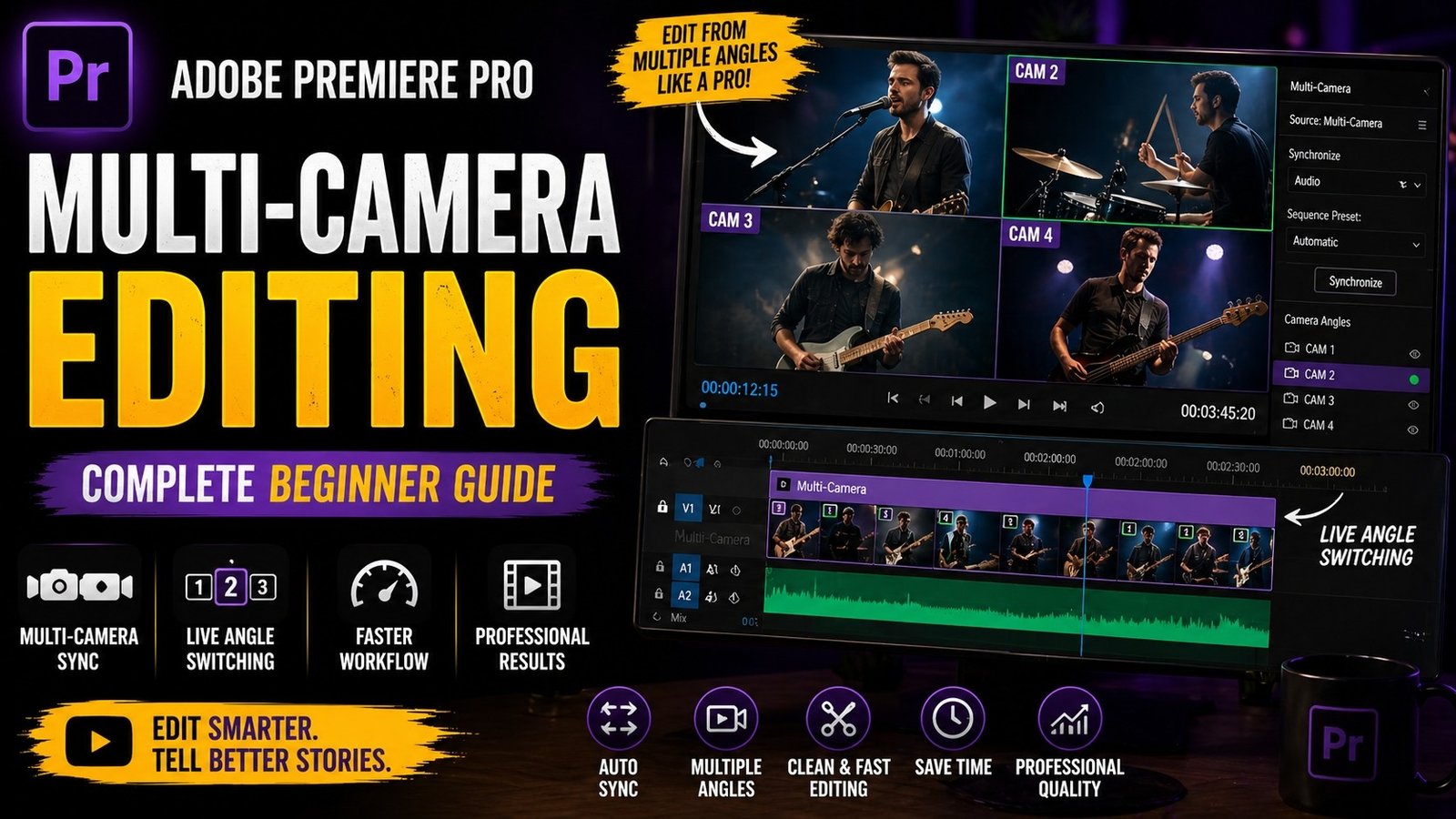
Multi-camera editing in Adobe Premiere Pro is a powerful feature that allows you to edit footage recorded from multiple cameras easily and efficiently, making it especially useful for interviews, podcasts, events, and YouTube videos where more than one angle is used. Instead of manually cutting and syncing each camera clip, Premiere Pro provides a simple workflow to combine all clips into a single multi-camera sequence and switch between angles in real time, which saves a lot of time and improves editing speed. To begin, you need to import all your camera clips into the Project Panel and make sure they are properly organized.
The next step is syncing the clips, which is one of the most important parts of multi-camera editing. Premiere Pro allows you to sync clips using audio, timecode, or markers, but the easiest method for beginners is audio sync. Select all your clips, right-click, and choose “Create Multi-Camera Sequence,” then select the audio synchronization option.
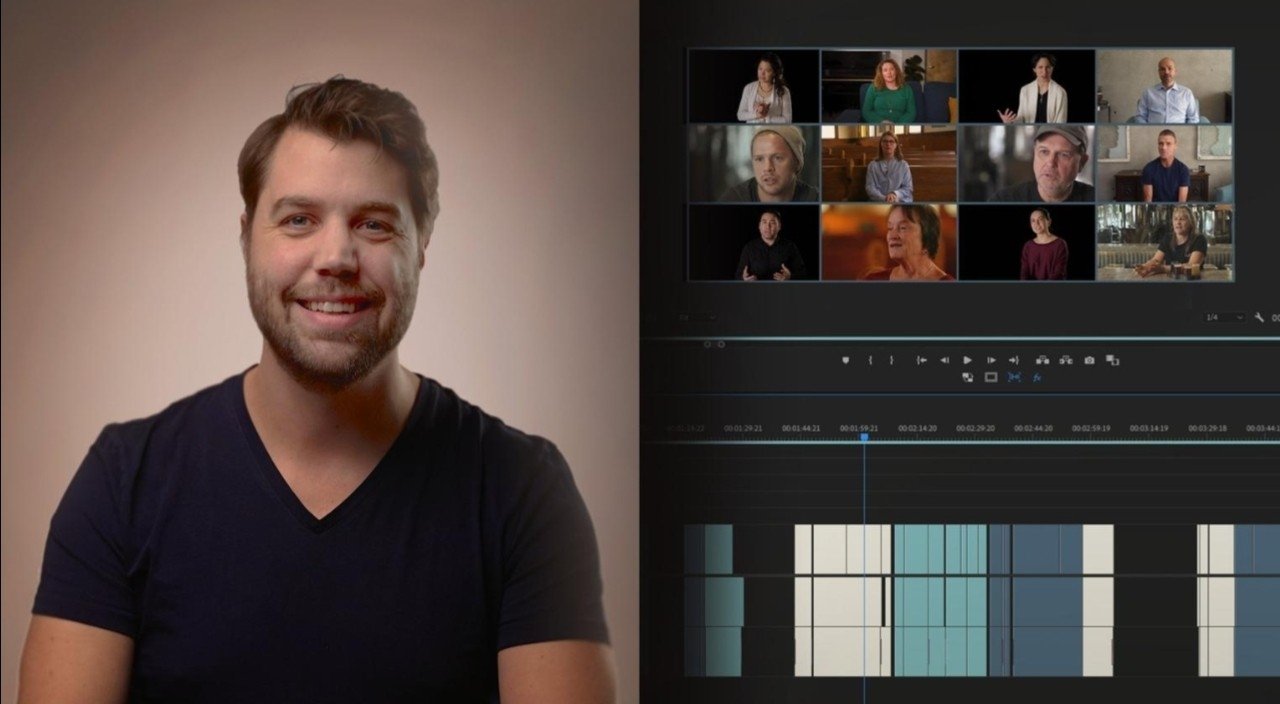
Premiere Pro will automatically align all clips based on their audio waveforms, ensuring that everything is perfectly in sync. Once the multi-camera sequence is created, you can open it in the timeline and enable the multi-camera view. This allows you to see all camera angles at once in the Program Monitor. During playback, you can click on different camera angles or use number keys on your keyboard to switch between them in real time. Premiere Pro records these switches as cuts in your timeline, making the editing process fast and intuitive.
🎬 Multi-Camera Setup View
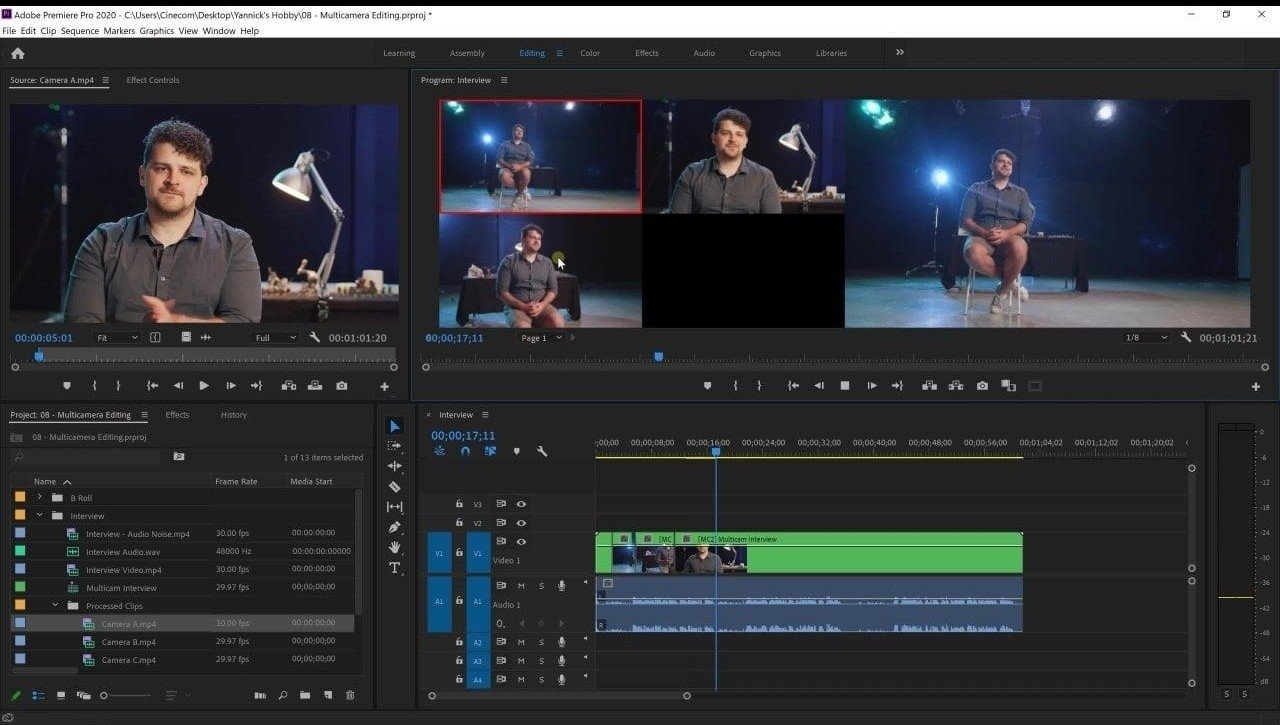
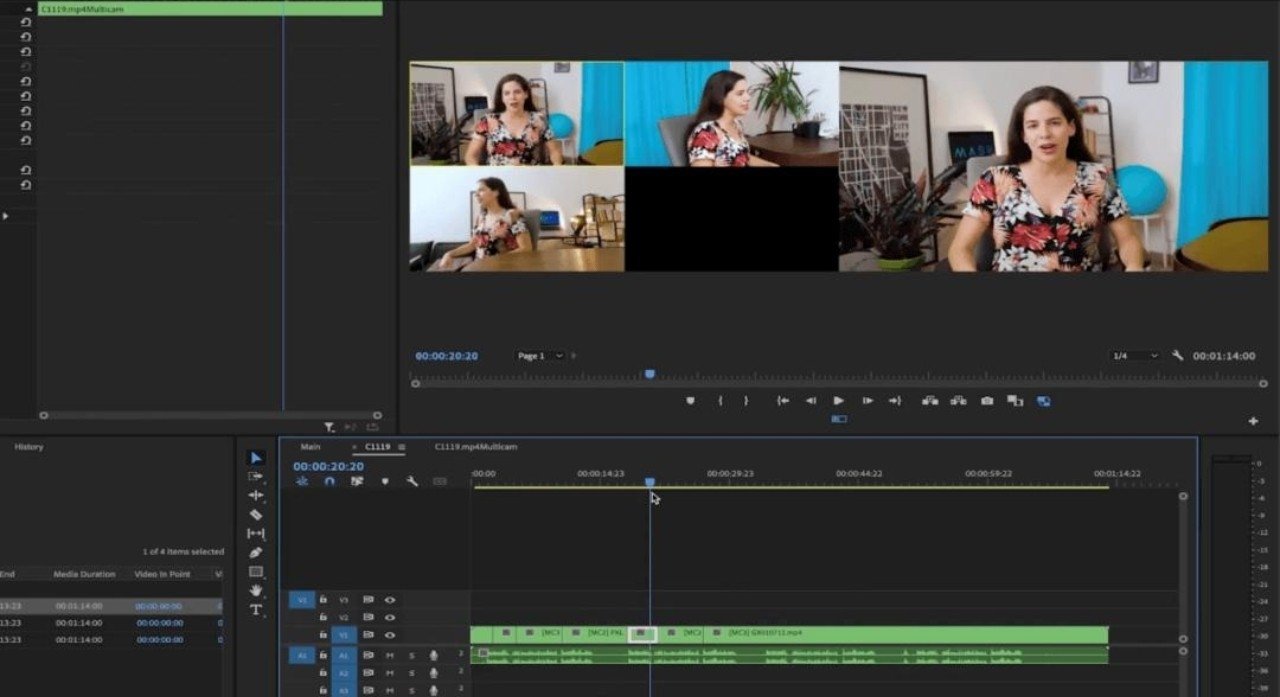
After making your initial cuts, you can refine your edits by trimming clips, adjusting timing, and smoothing transitions. Multi-camera editing does not mean you cannot make manual adjustments. You can still use all the regular editing tools like trim, ripple edit, and cut to improve your sequence. One important tip is to choose camera angles based on the context of your video. For example, use wide shots for general scenes and close-ups for important moments or expressions. This makes your video more engaging and visually appealing. You can also add zoom effects or slight motion to static shots to create more dynamic visuals.
🔄 Camera Switching Timeline
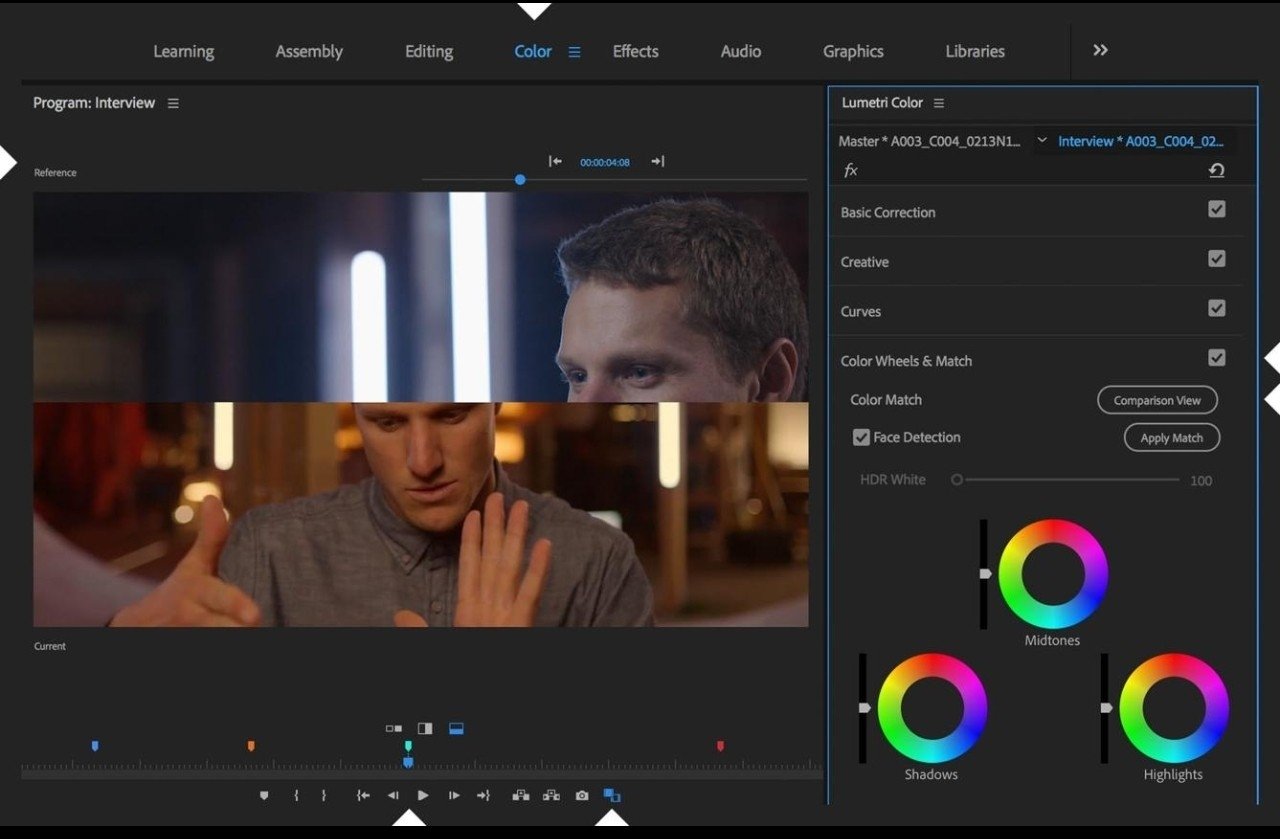
Another important aspect of multi-camera editing is audio management. Even though you have multiple camera angles, you usually use audio from only one main source, such as a microphone. Make sure you select the best audio track and mute unnecessary audio from other clips to avoid echo or noise. Premiere Pro allows you to control audio separately, so you can maintain clean and professional sound quality. You can also enhance audio using the Essential Sound panel if needed. Color matching is another key step, as different cameras may have slightly different colors or exposure levels. You can use the Lumetri Color panel to adjust colors and make all clips look consistent. This is important for maintaining a professional look throughout your video
🎨 Color Matching Between Cameras
Multi-camera editing also allows you to create more engaging storytelling by switching angles at the right moments. For example, during a conversation, you can switch between speakers to maintain viewer interest. Timing is very important, so try to switch angles naturally based on dialogue or action. Avoid switching too frequently, as it can feel distracting. Keep your edits smooth and purposeful. Practice is the key to mastering multi-camera editing. Start with simple projects and gradually try more complex setups. Even if your system is not very powerful, you can still work with multi-camera editing by using proxy files, which are lower-resolution versions of your clips that improve performance. Premiere Pro supports proxy workflows, making it easier to edit large projects smoothly
⚡ Final Multi-Camera Output
By learning multi-camera editing, you can significantly improve your workflow and produce high-quality videos faster. This feature is widely used in professional video production, and mastering it will give you an advantage as a video editor. Focus on syncing clips correctly, switching angles smoothly, managing audio, and maintaining consistent color. With practice, you will be able to create professional multi-camera edits that look clean, engaging, and well-structured.